
GizAI for ChatGPT
Ask ChatGPT to work in your Giz Computer.
Add GizAI to ChatGPT once. Then ask, by typing or in a ChatGPT Voice conversation, to read a terminal, run a command, or hand a longer task to a Giz Agent, and read the result in the chat.
https://www.giz.ai/api/mcpBefore you start
What you need
- A GizAI account and a Giz Computer
- Terminal and command requests run in a Giz Computer you own or are allowed to control. Create one on the Computer page first.
- ChatGPT on the web
- Add the plugin at chatgpt.com in a desktop browser. The steps below use that screen.
- Developer mode on a personal account
- On a personal Free account, ChatGPT shows “Create custom MCP server” only after you turn on Developer mode. If you already see that menu item, skip step 1.
- Work accounts follow your admin
- On ChatGPT Business, Enterprise, and Edu, workspace admins decide whether members can use developer mode and custom MCP apps. Ask your admin before you start.
Setup
Connect GizAI in six steps
Screens below are from ChatGPT on the web, captured on 2 October 2026. ChatGPT may move these controls later.
- 1
Turn on Developer mode (if needed)
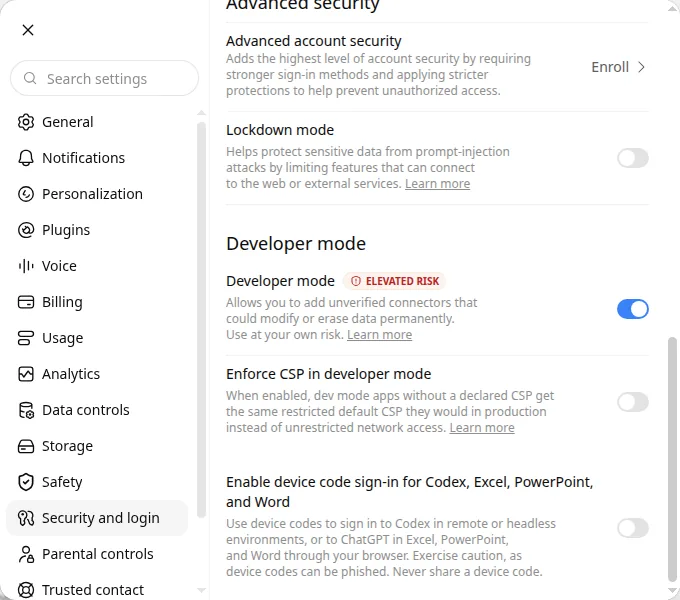
In ChatGPT, open your profile menu, choose Settings, then Security and login. Turn on Developer mode.
ChatGPT labels this setting “Elevated risk” because it lets you add connectors that OpenAI has not reviewed, including GizAI.
- 2
Open Plugins and create a custom MCP server
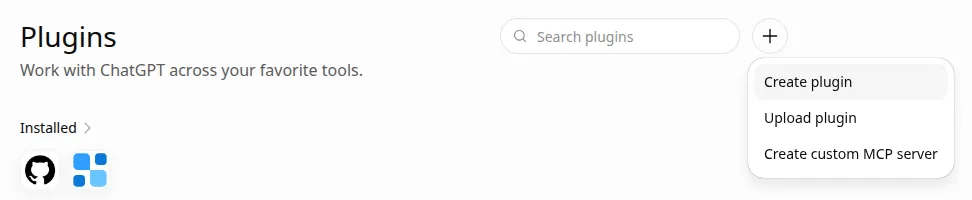
Go to Plugins in the sidebar, select the + button, then choose Create custom MCP server.
- 3
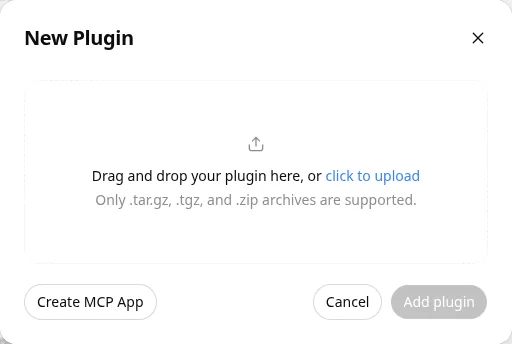
If a “New Plugin” window opens, choose Create MCP App
Some accounts first see a window for uploading a plugin archive. You do not need a file. Select Create MCP App.
- 4
Enter the GizAI server and create the plugin
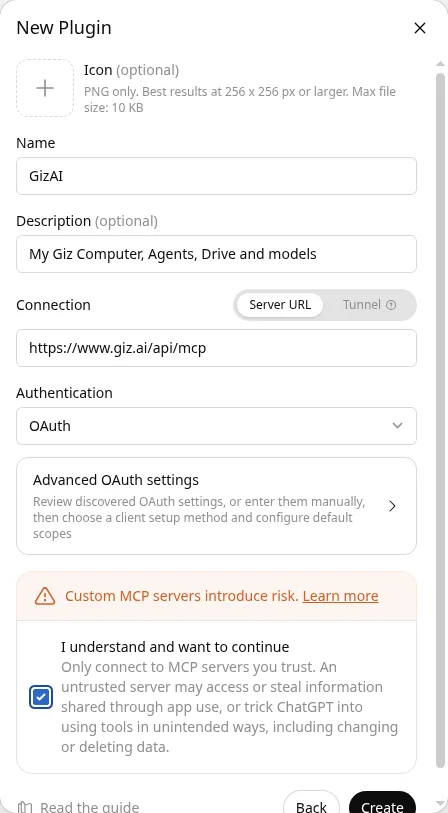
Fill in the form exactly like this, then select Create:
Server URLhttps://www.giz.ai/api/mcp- Name: GizAI (the description is optional)
- Connection: Server URL, with the address above
- Authentication: OAuth
- Tick “I understand and want to continue”
- 5
Leave the detected OAuth settings as they are
Advanced OAuth settings fills itself from the Giz server: Dynamic Client Registration and the Giz permission scopes. You do not need to enter a client ID or secret.
The notice that CIMD is unavailable is expected and does not block the connection.
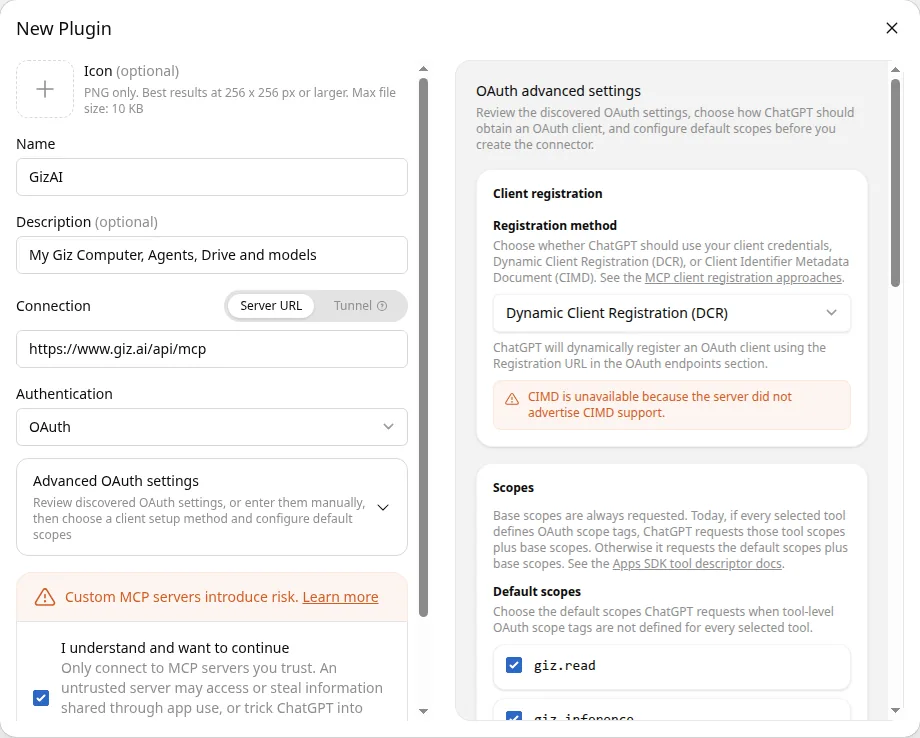
- 6
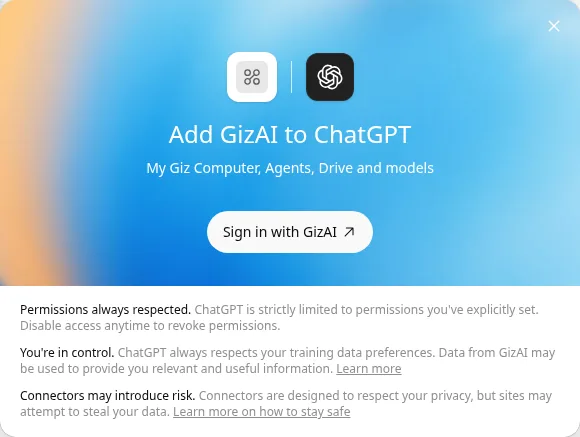
Sign in with GizAI and review the permissions
Select Sign in with GizAI. A GizAI page opens: sign in with your usual GizAI login, then read the permissions ChatGPT asks for and select Allow access.
Afterwards the GizAI plugin page in ChatGPT shows your GizAI account under Connected accounts.
- giz.read: see your models, jobs, Drive files, and Computers
- giz.inference: use Giz models (uses your credits)
- giz.write: create media and write or organize Drive files
- giz.execute: start Computers and run commands in them
- giz.destructive: move Drive entries to Trash and stop Computers
- email:send: send email only when you explicitly ask
First requests
Say or type one short request
Start a new chat, choose GizAI from the plugins in the message box, then ask. In Voice, say the same sentence.
Choose the Computer
“List my Giz Computers and tell me which one is the default.”
GizAI uses your default Computer unless you name another one, so say its name in later requests: “On my Computer named studio, …”.
Read a terminal
“List my terminals on studio and summarize what the most recent one shows.”
ChatGPT lists the open terminal sessions and reads the current screen of the one you pick. Reading never types anything.
Type into an open terminal
“In the terminal named api on studio, type git status, press Enter, and tell me the result.”
Typing works in a terminal session that is already open in your Computer. ChatGPT may ask you to confirm first.
Run one command
“Run df -h on studio and tell me how much disk space is free.”
Short commands run outside your visible terminal and return their output and exit code.
Hand a task to a Giz Agent
“Ask a Giz Agent on studio to check why the last build failed, then tell me what it found.”
The Agent task runs in Giz. Ask ChatGPT for its status if the answer is not back yet.
Know the limits
What this connection does and does not do
- Voice is a ChatGPT feature. OpenAI says ChatGPT Voice can use the plugins connected to your account on web, iOS, and Android, and that Free and Go accounts use the plugins their plan supports. GizAI receives the same requests either way.
- ChatGPT acts only while you are talking or chatting with it. A Giz Agent task you started keeps running in Giz, and you can ask about it later.
- Commands have a time limit of 2 minutes by default and 15 minutes at most. Long output is shortened before it reaches ChatGPT, so ask for a summary or the last lines.
- ChatGPT decides when to ask for your confirmation. By default it allows low-risk tools and asks before others; you can change this in ChatGPT Settings, Plugins.
- Requests use your GizAI account, permissions, and credits. ChatGPT cannot see another person’s Computers or files.
Troubleshooting
If something does not work
“Create custom MCP server” is missing from the + menu
Turn on Developer mode in ChatGPT Settings, Security and login, then reload the Plugins page. On a work account, your admin may have turned custom MCP apps off.
ChatGPT says terminal reading is not supported or mentions tools such as giz_container_observe
That chat is using an older Giz Computer plugin. Add the GizAI plugin with the server URL on this page and choose GizAI in a new chat.
You changed or re-added the plugin and ChatGPT still behaves the old way
Start a new chat. OpenAI recommends a new conversation after a plugin changes, because an existing chat may keep the tools it started with.
Typing into a terminal fails with “Terminal session not found”
Open the terminal in your Giz Computer first, then ask ChatGPT to list terminals and use the exact one it shows.
The request ran on the wrong Computer
Name the Computer in every request, for example “on studio”. Ask ChatGPT to list your Computers to see the exact names.
The answer stops partway through a long output
Long command output is shortened. Ask for a summary, a count, or only the last lines, for example “run tail -n 50 on the log”.
Other clients (Codex, Claude Code, the Giz CLI) are on Giz for AI agents. Still stuck? Email support@giz.ai from your account address.