GPT Image 2 Free Generator and Prompt Guide | GizAI
GPT Image 2 free, no sign-up

GPT Image 2 Free Generator and Prompt Guide

Start GPT Image 2 from your browser: readable posters, multi-reference edits, and product shots without a sign-up wall.

  • GPT Image 2 Free
  • ChatGPT Images 2.0 Free
  • No sign-up quick generation
  • Multi-reference image edits
  • Posters, product photos, thumbnails
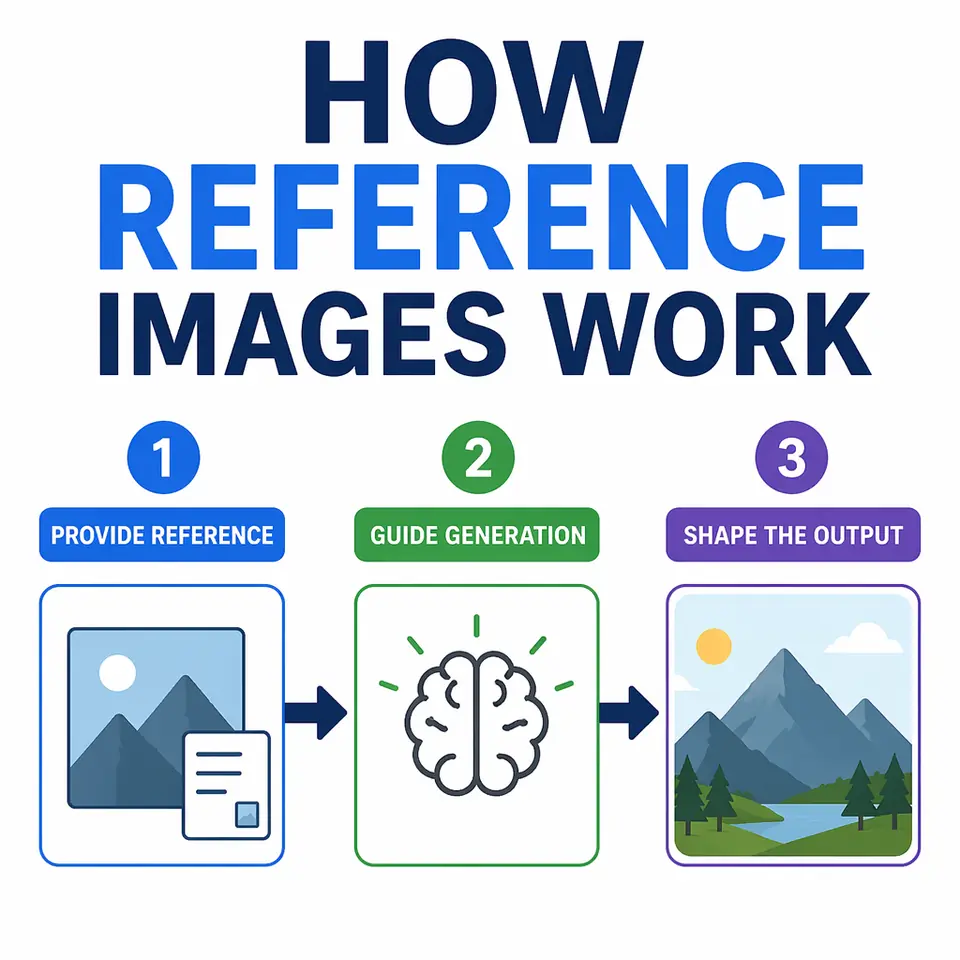
1 prompt Describe the visual, text, layout, camera, and constraints in natural language.
10 images Use GizAI's GPT Image 2 image-count option for rapid creative exploration.
Multi-ref Attach product, style, character, texture, or layout references for controlled edits.

GPT Image 2 prompt examples gallery

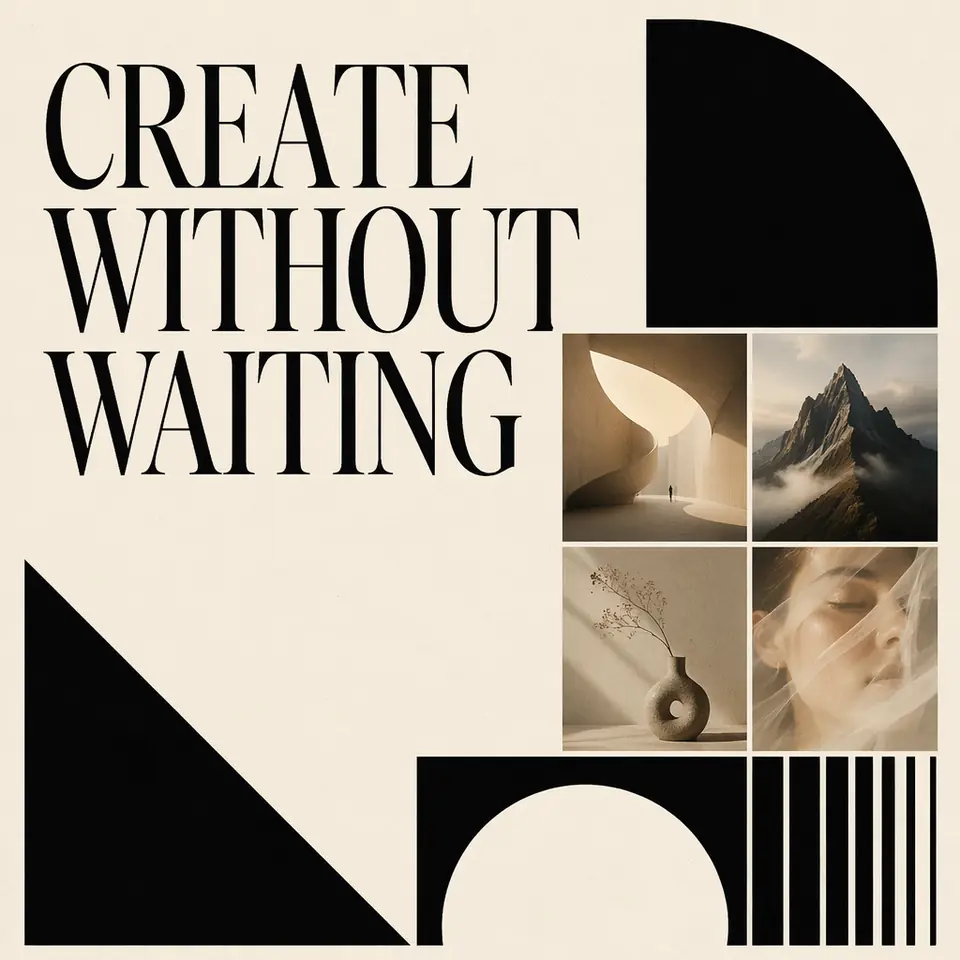
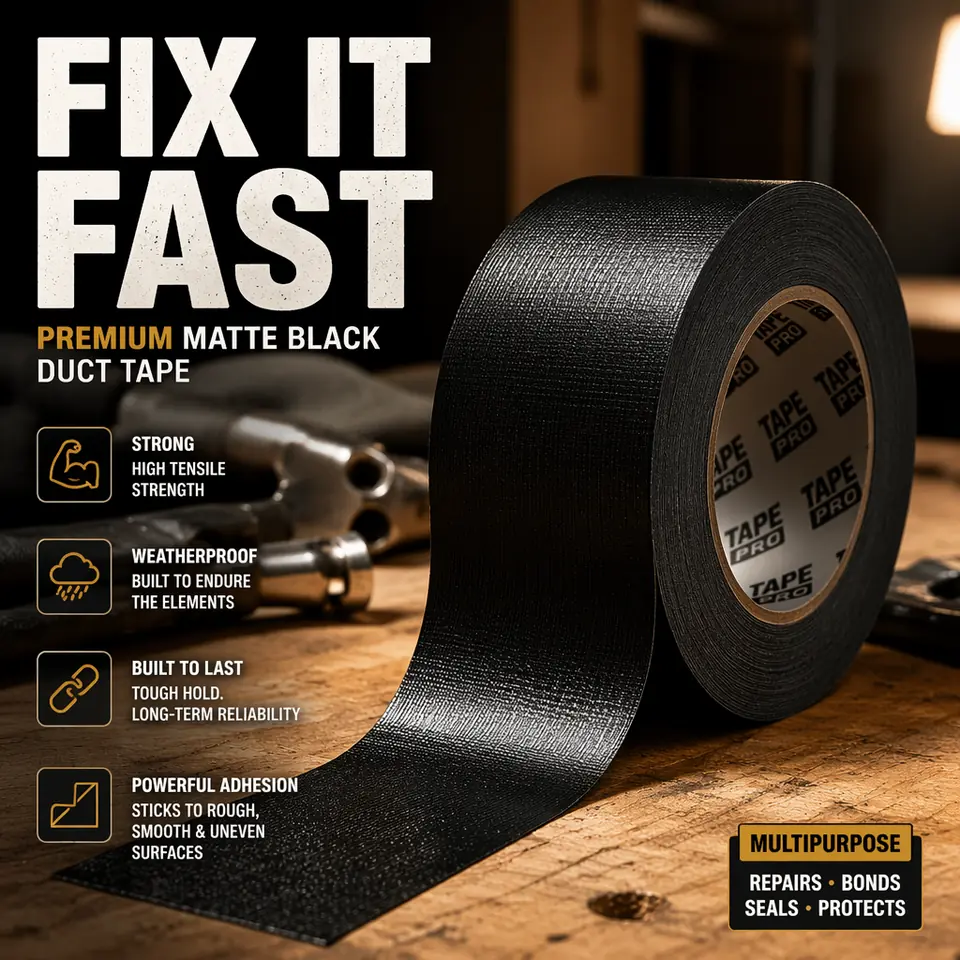
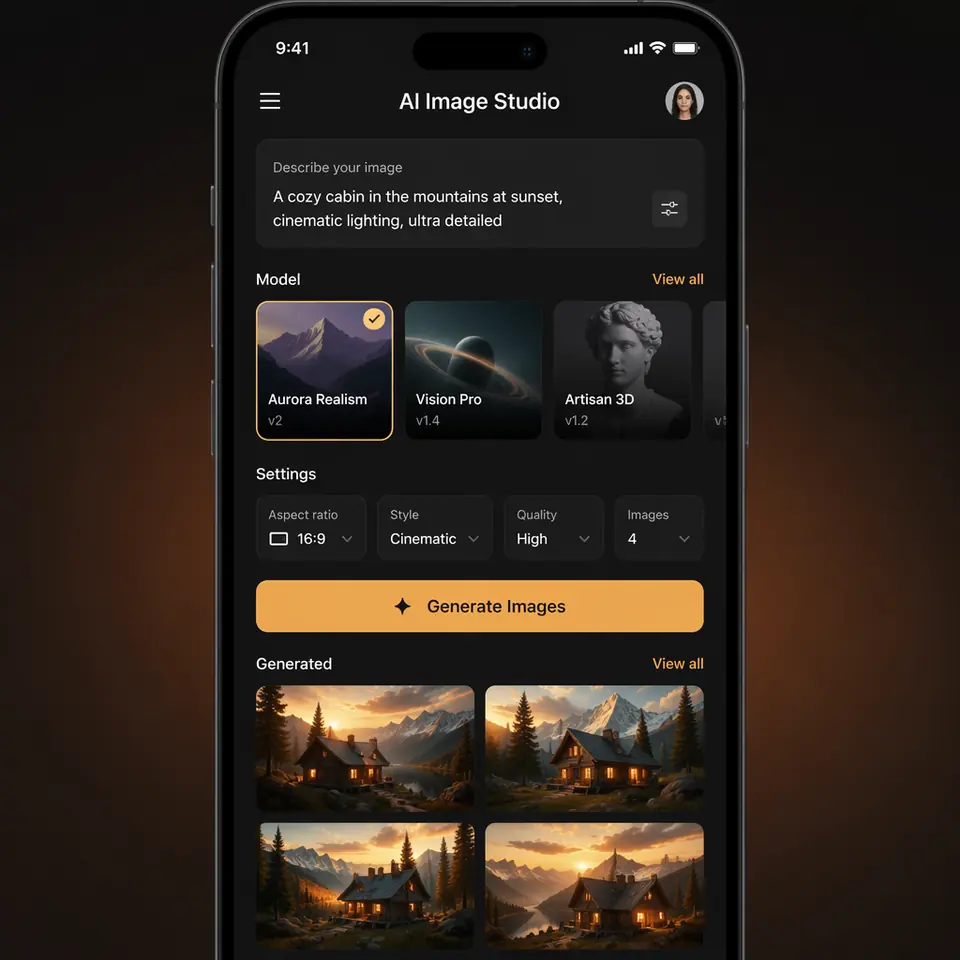
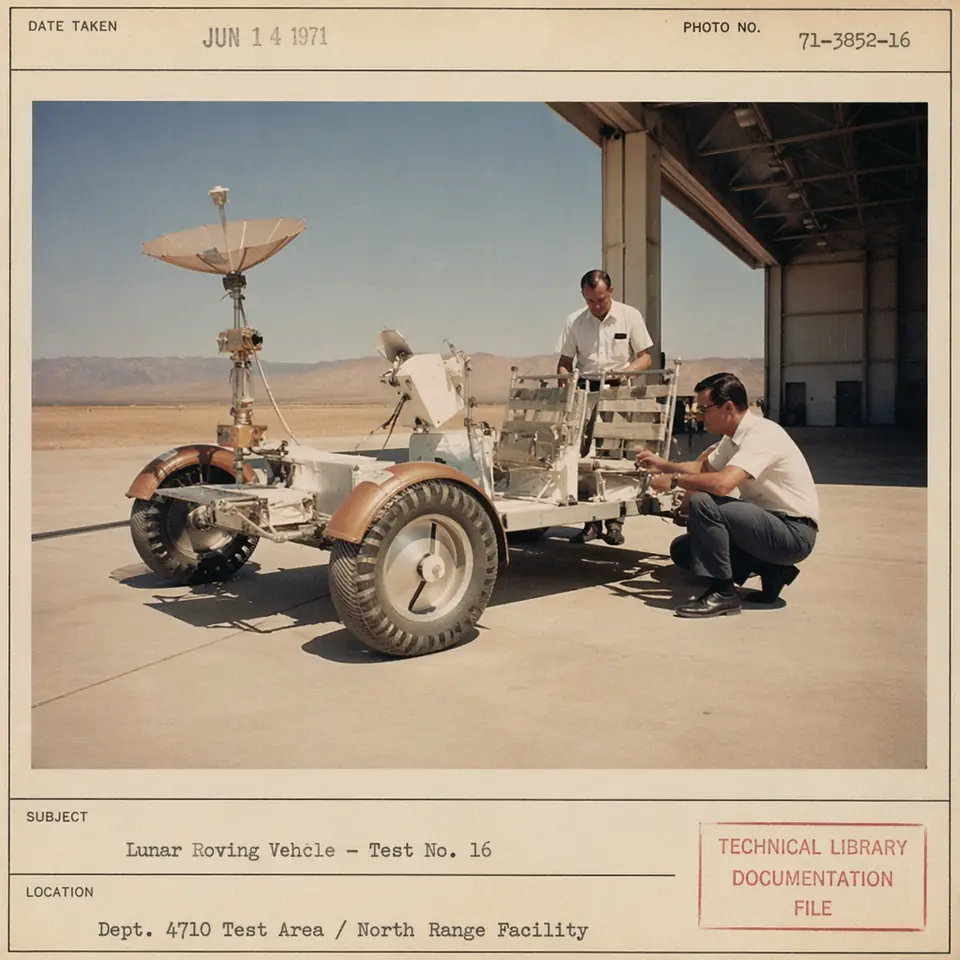
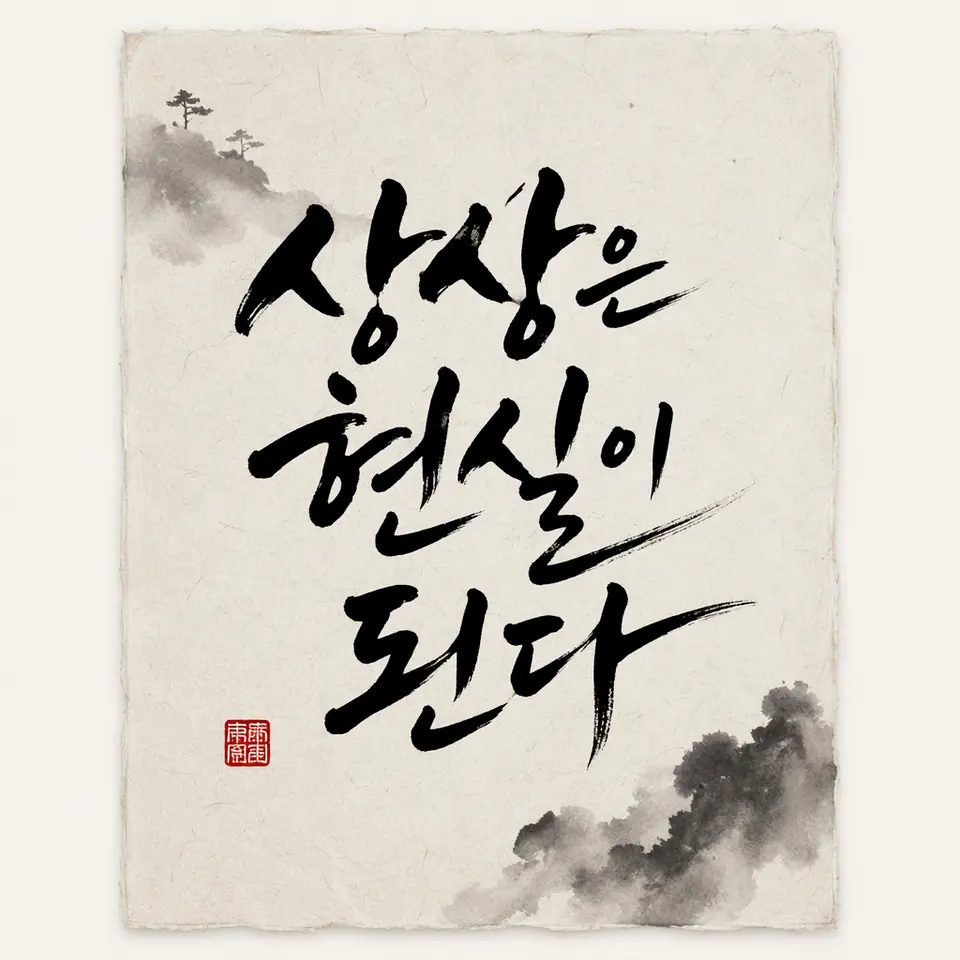
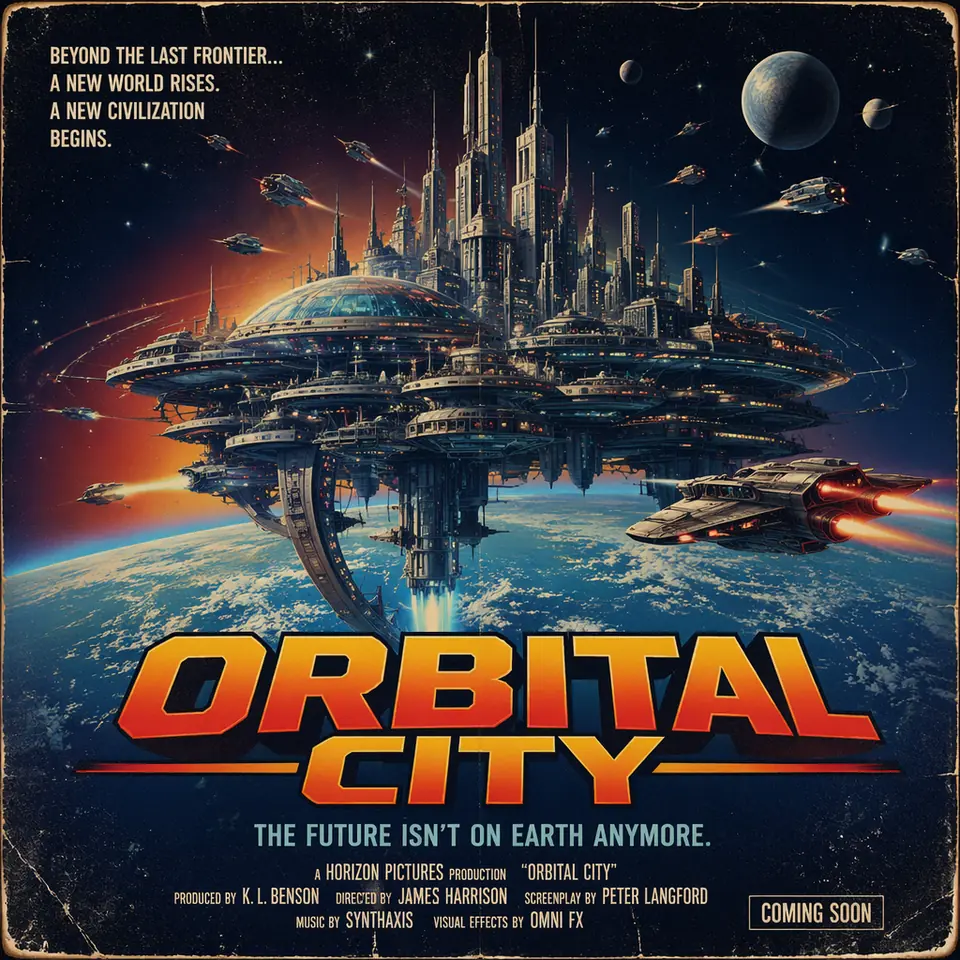
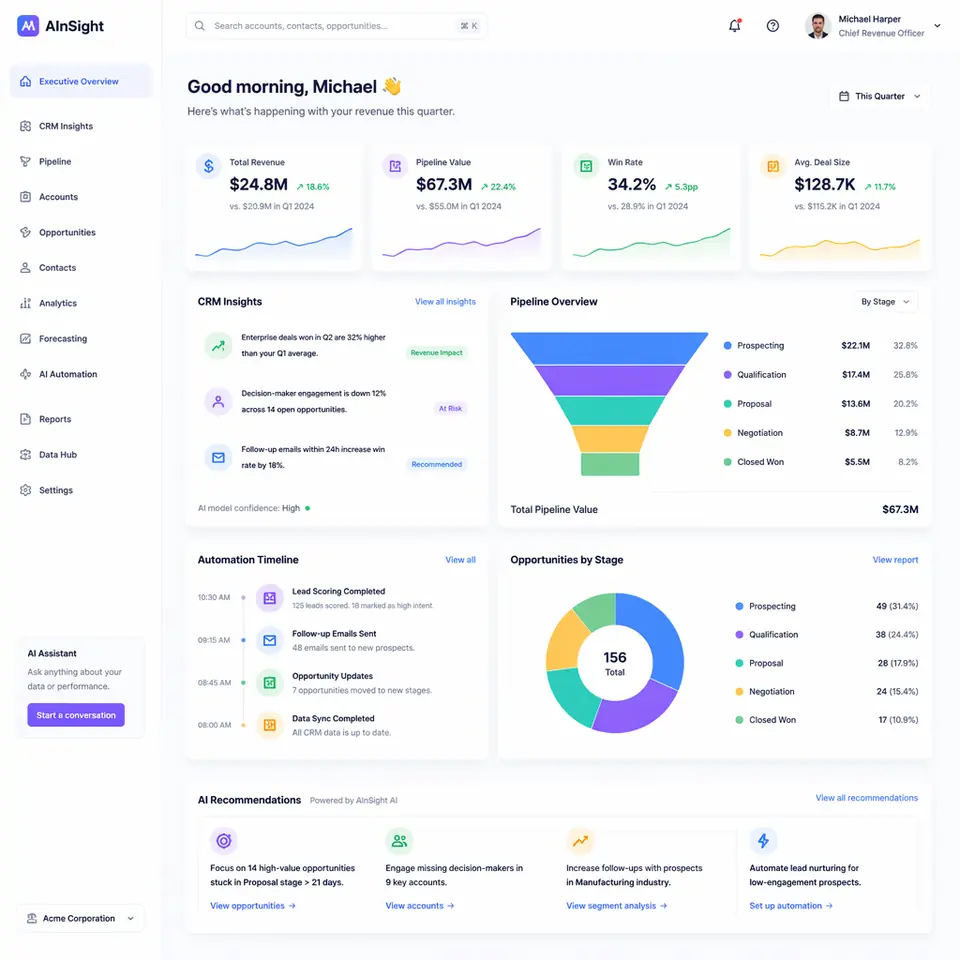
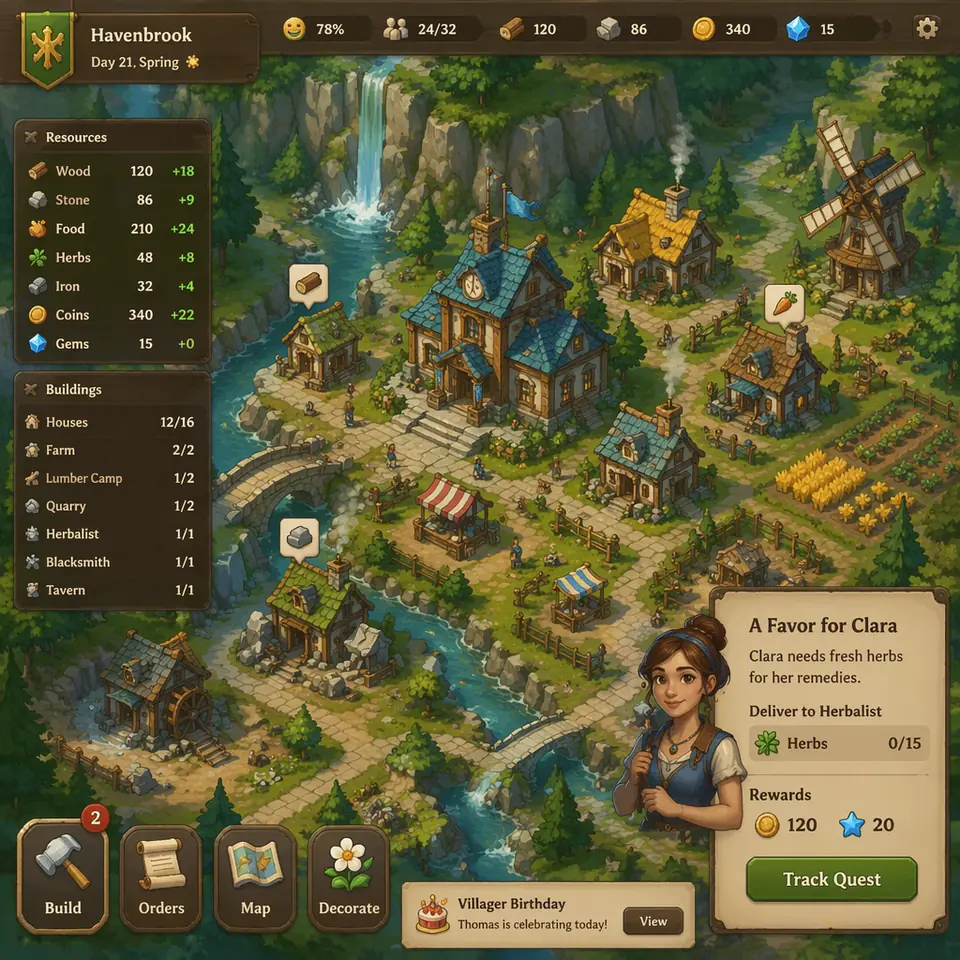
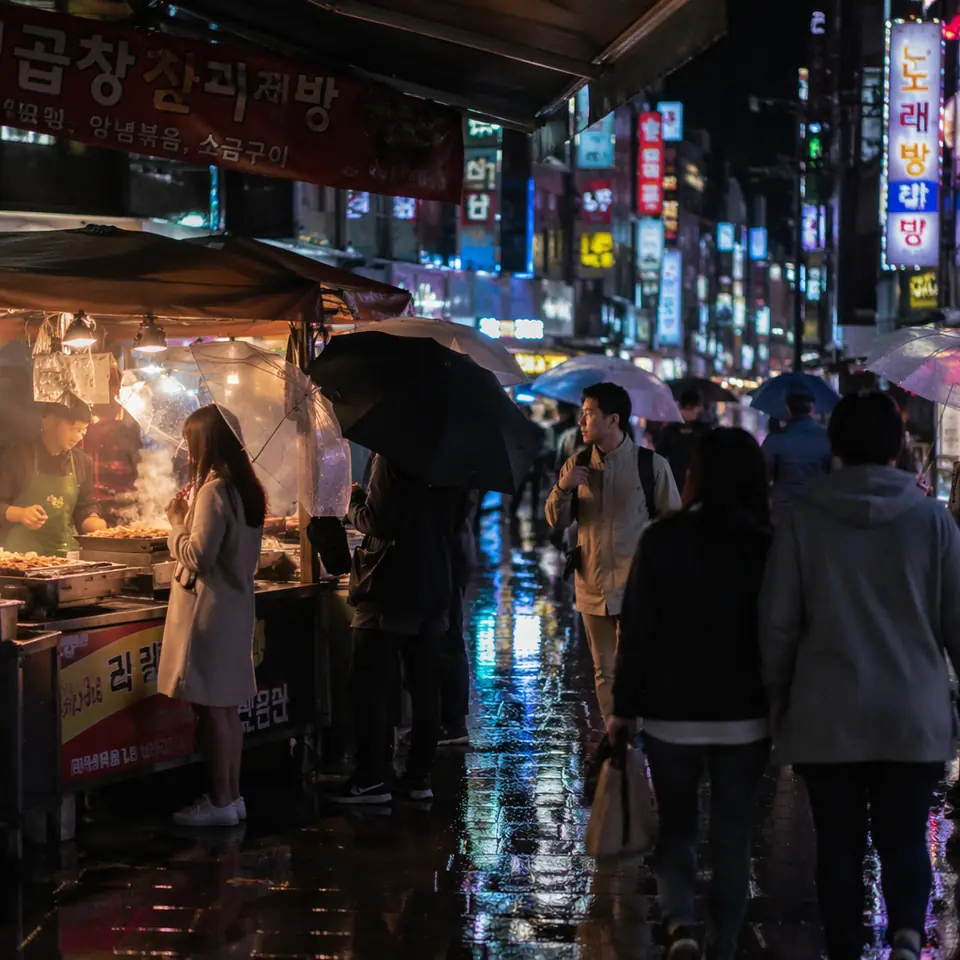
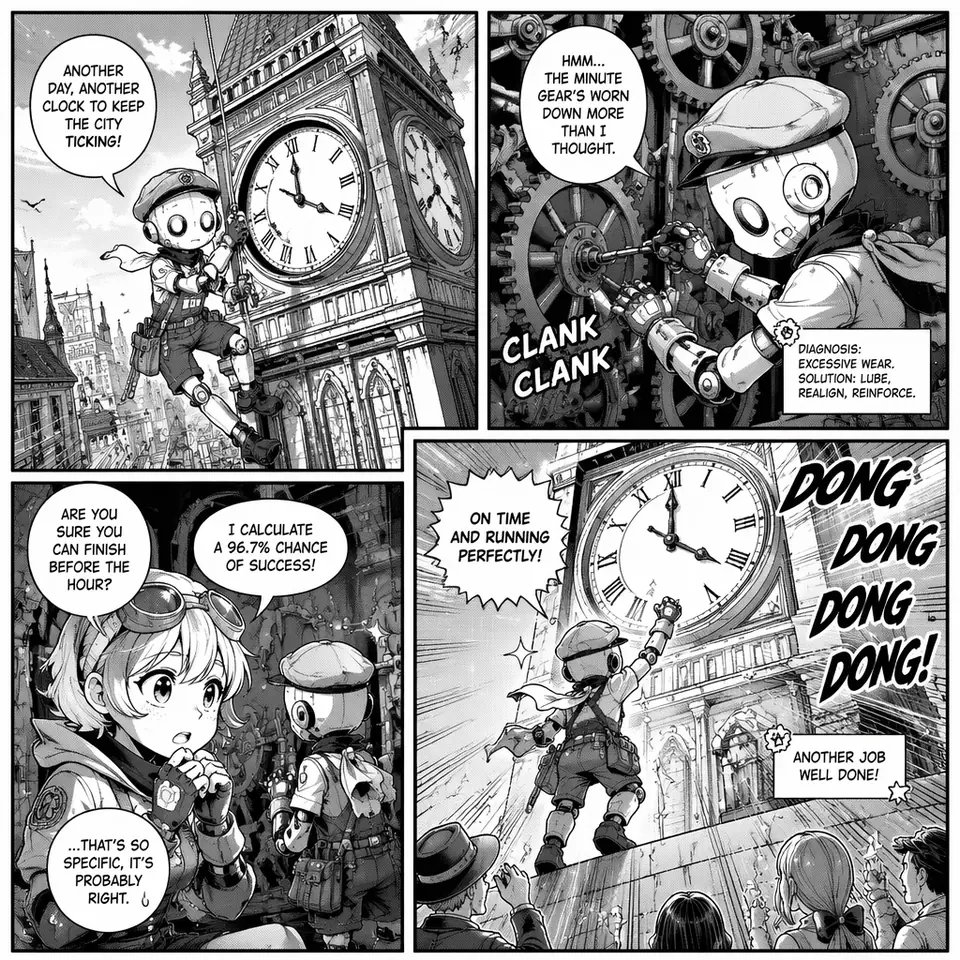
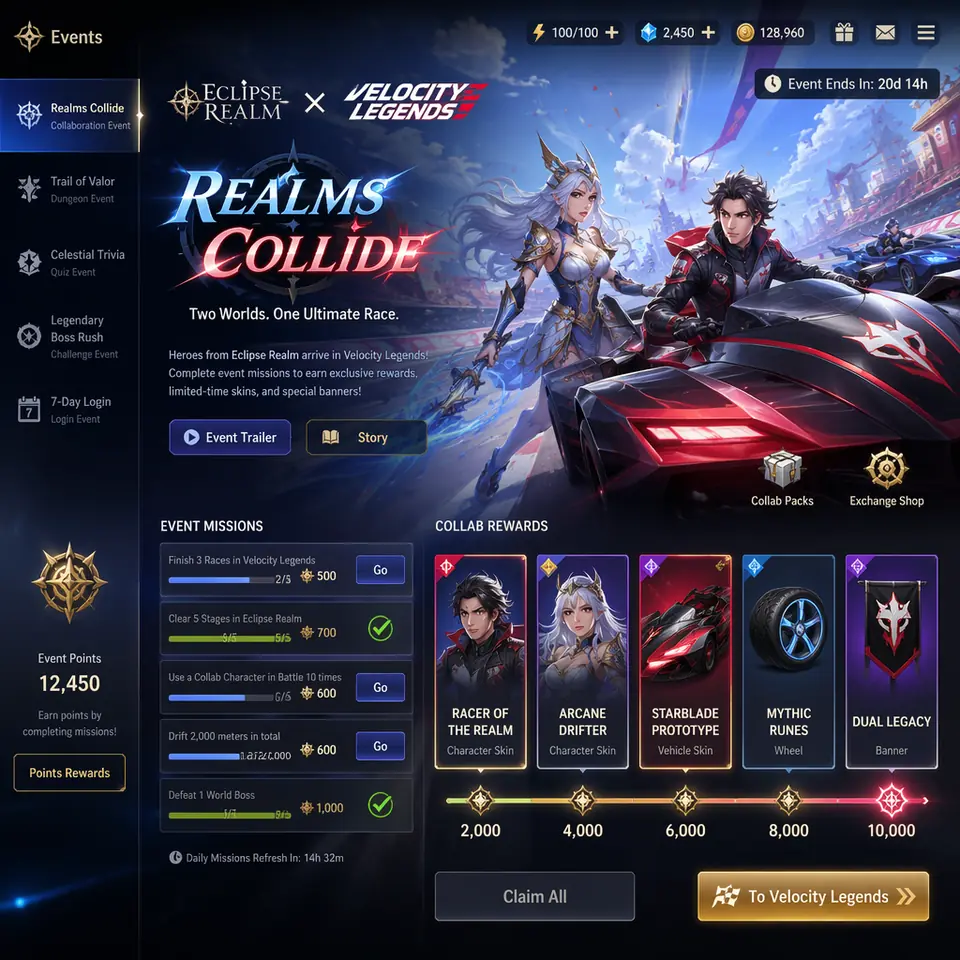
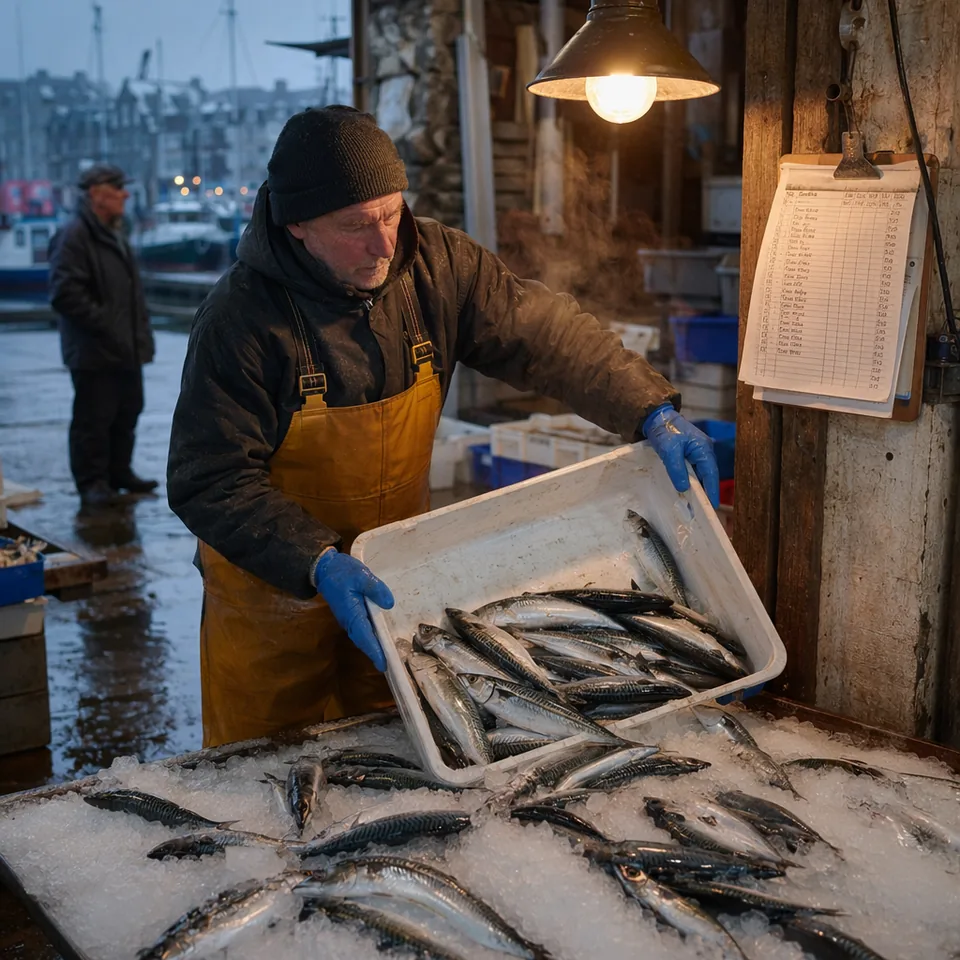
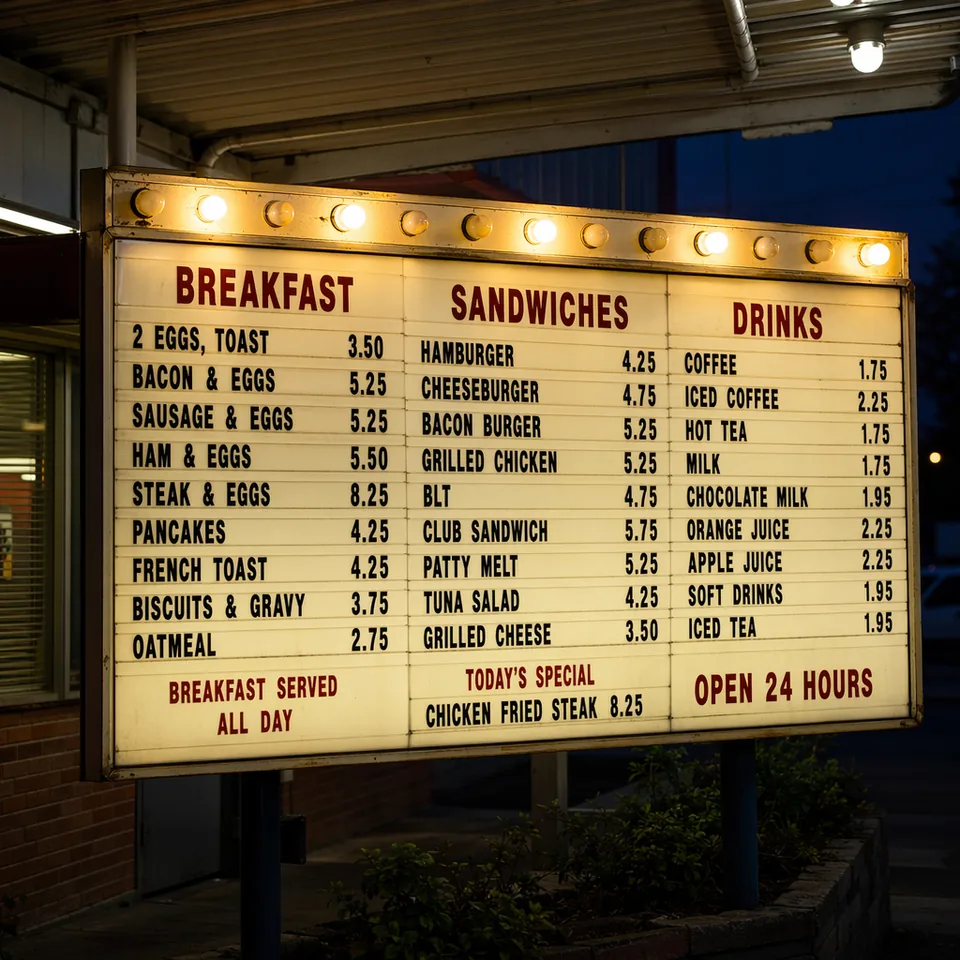
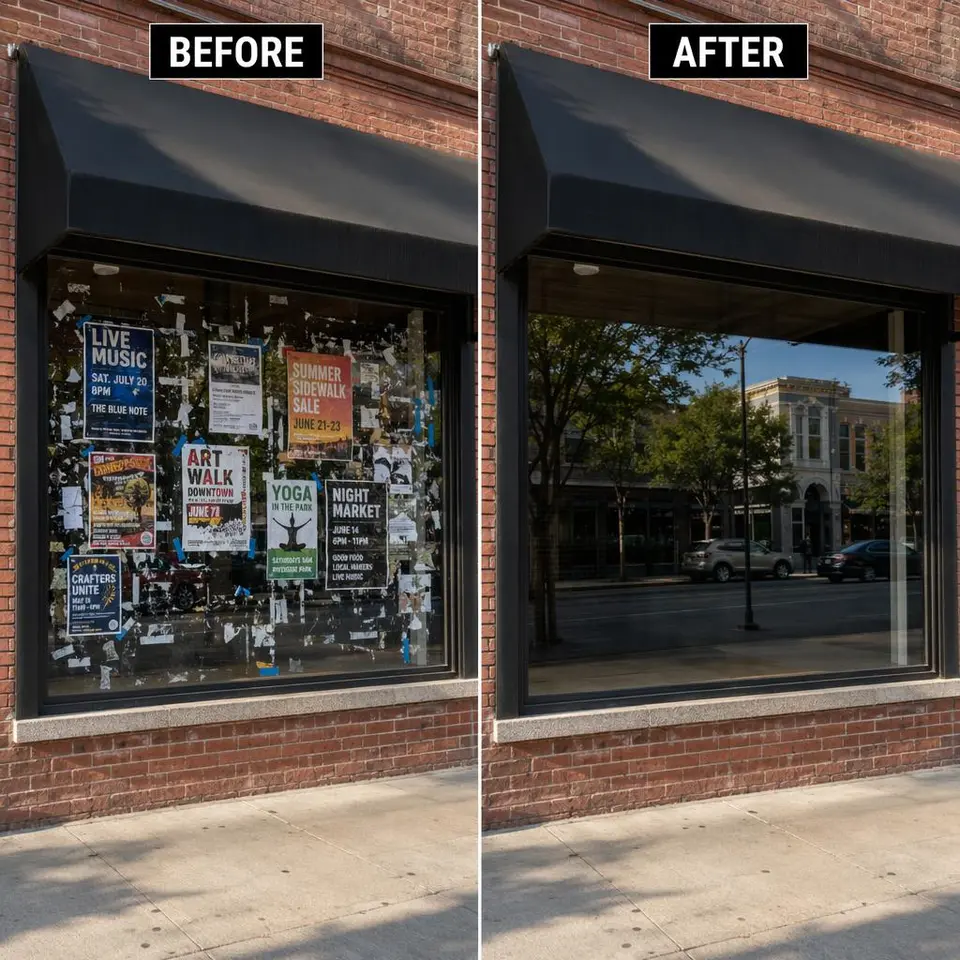
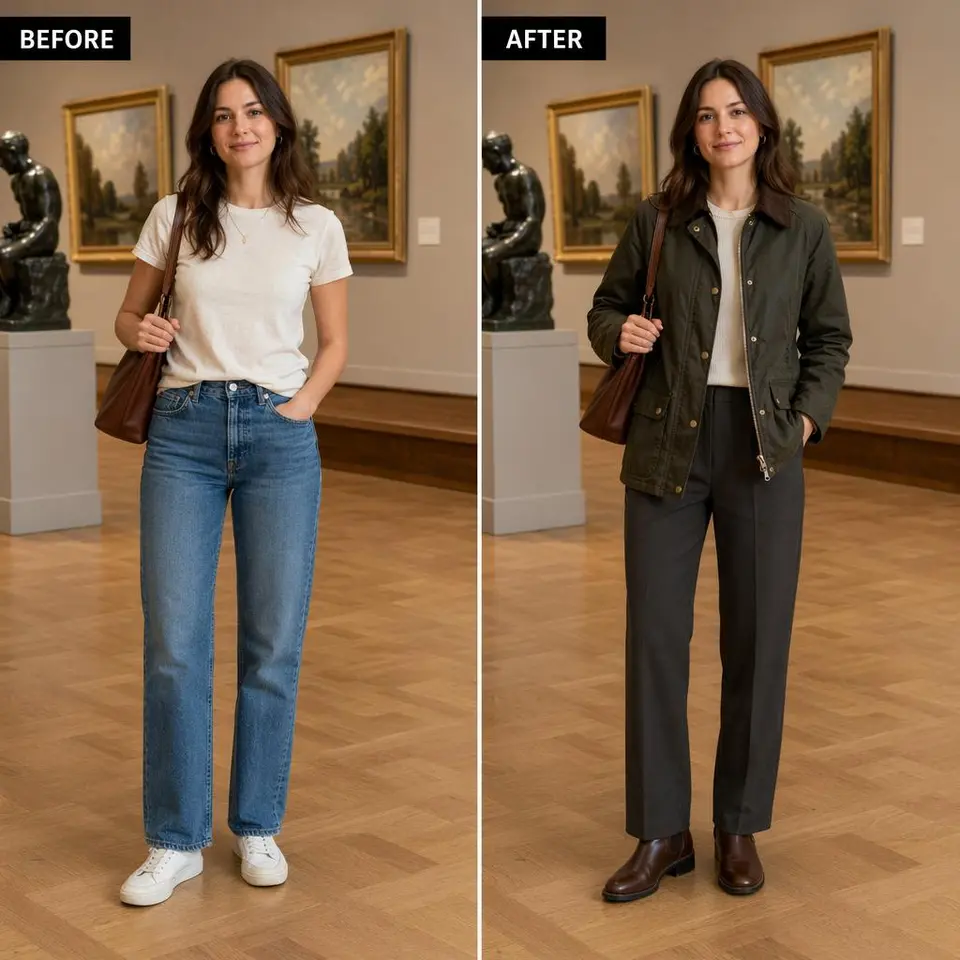
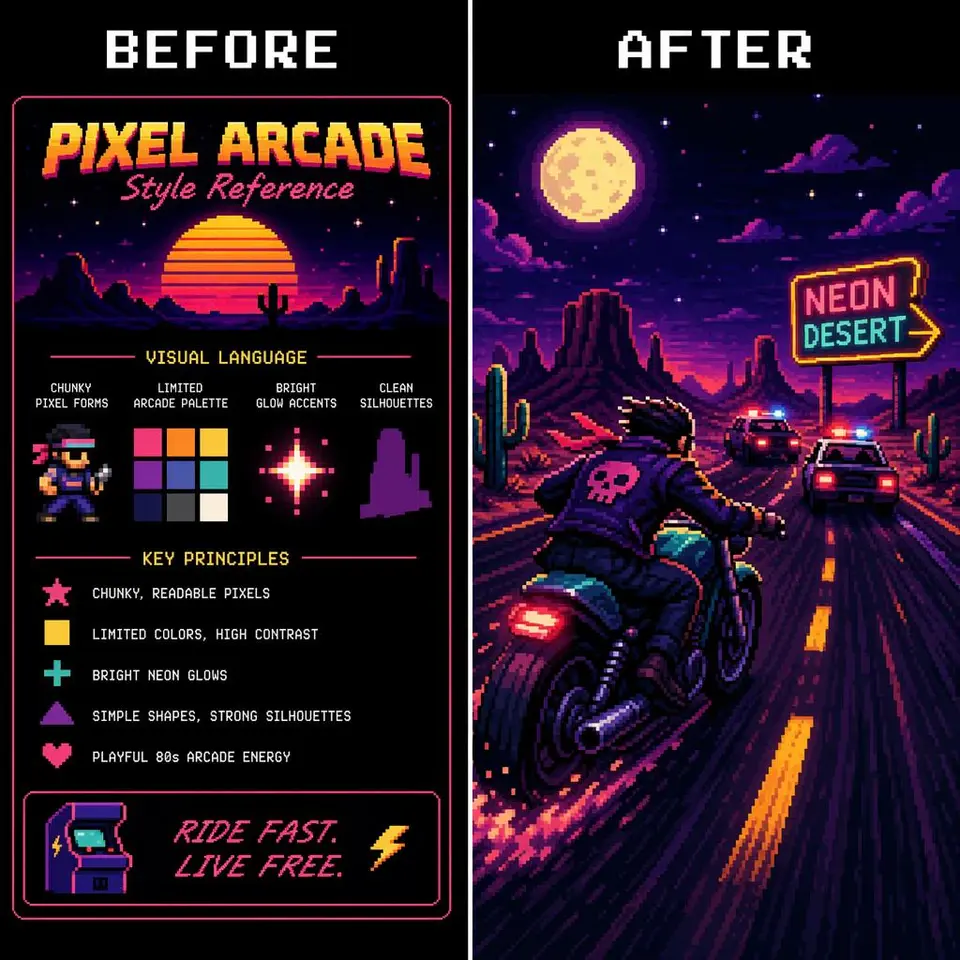
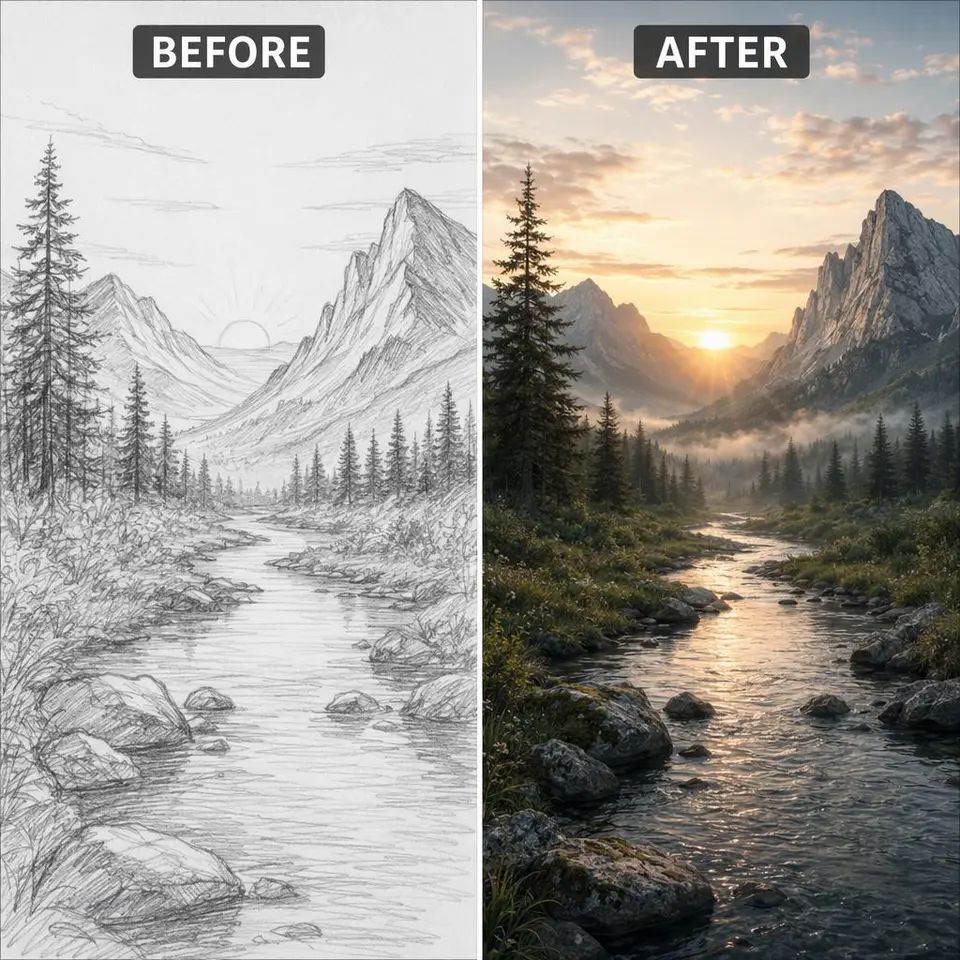
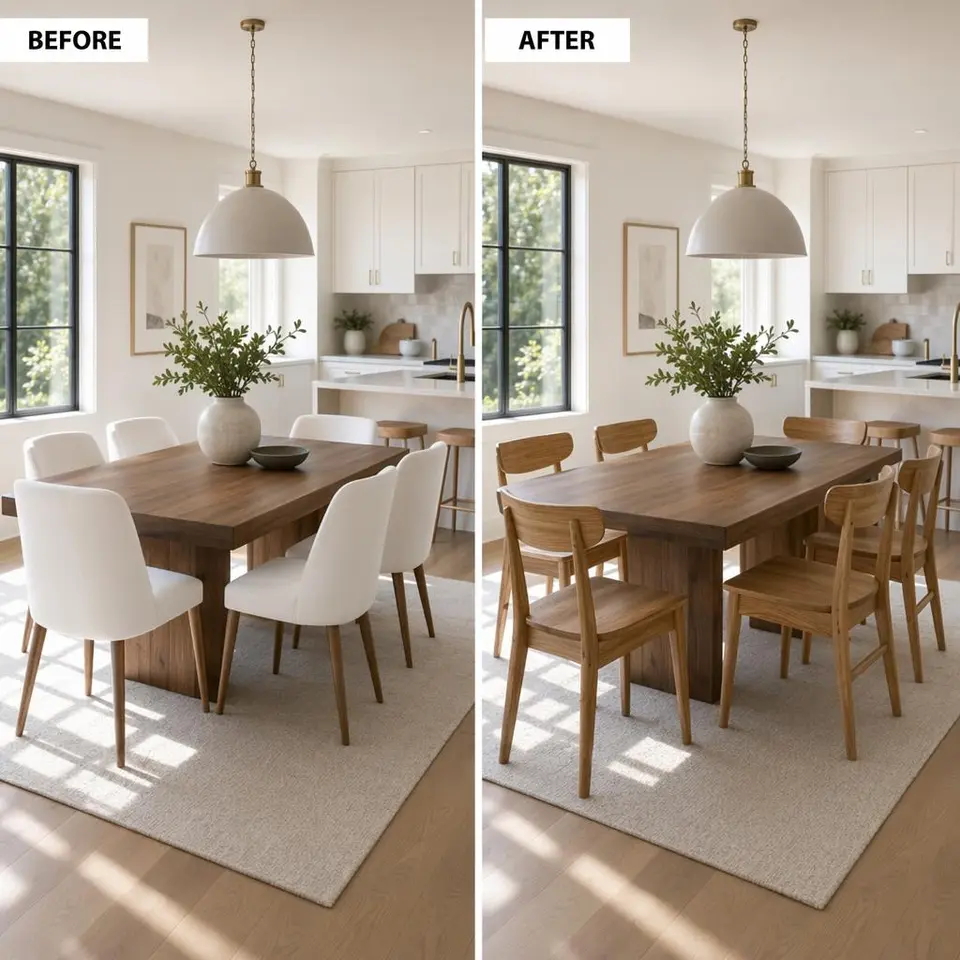
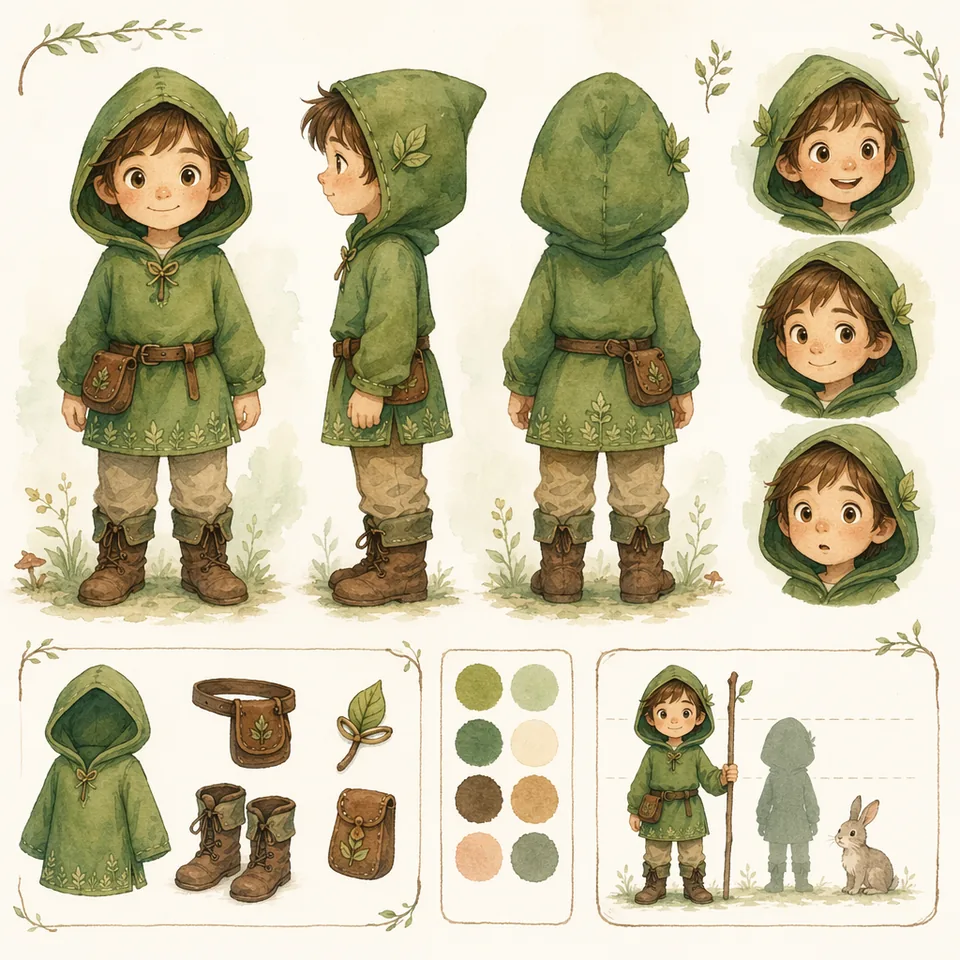
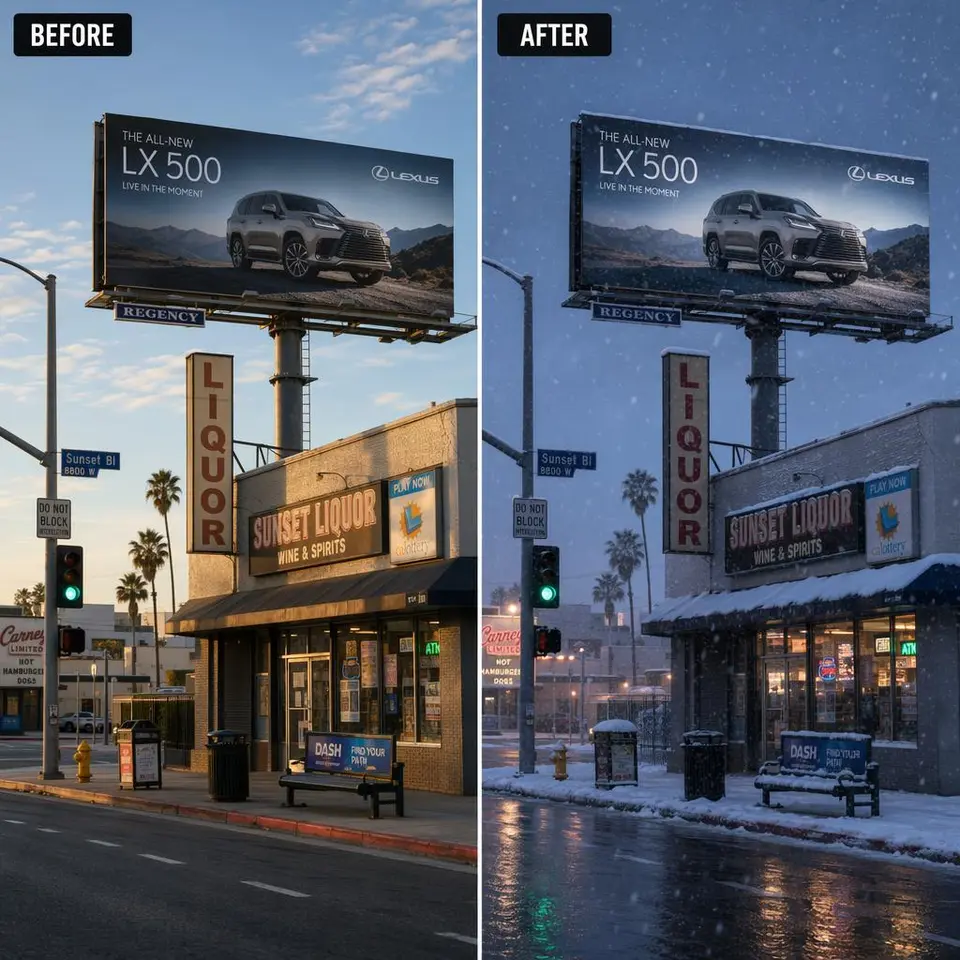
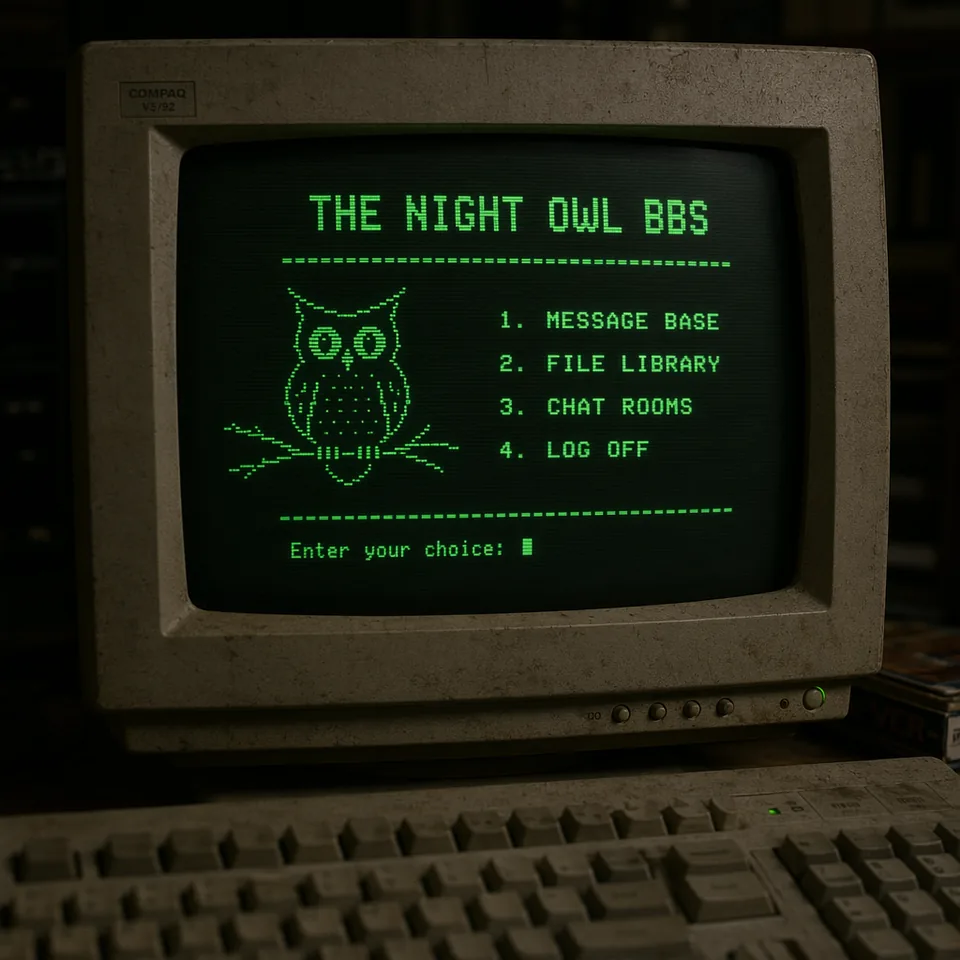
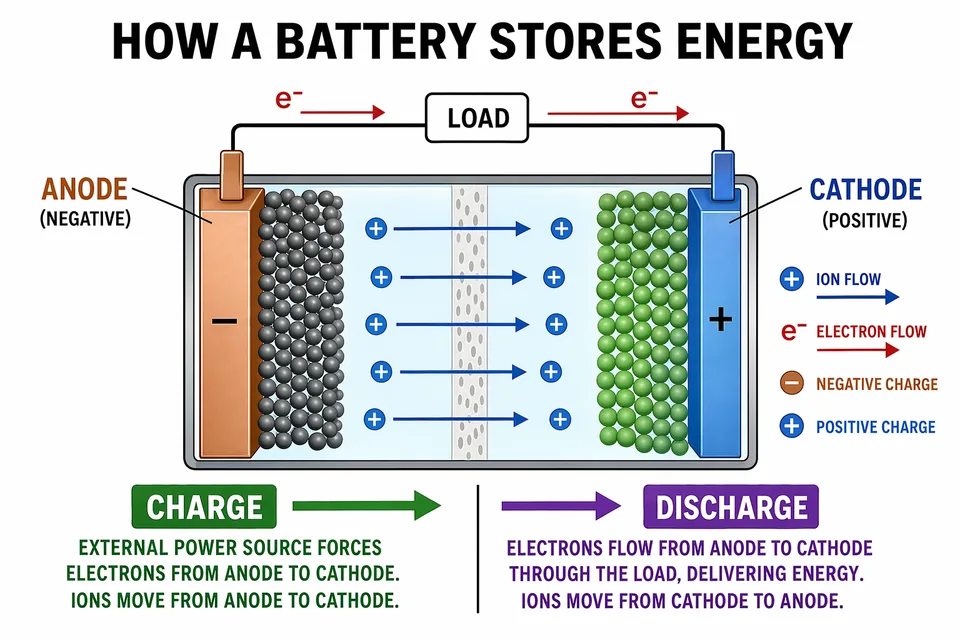
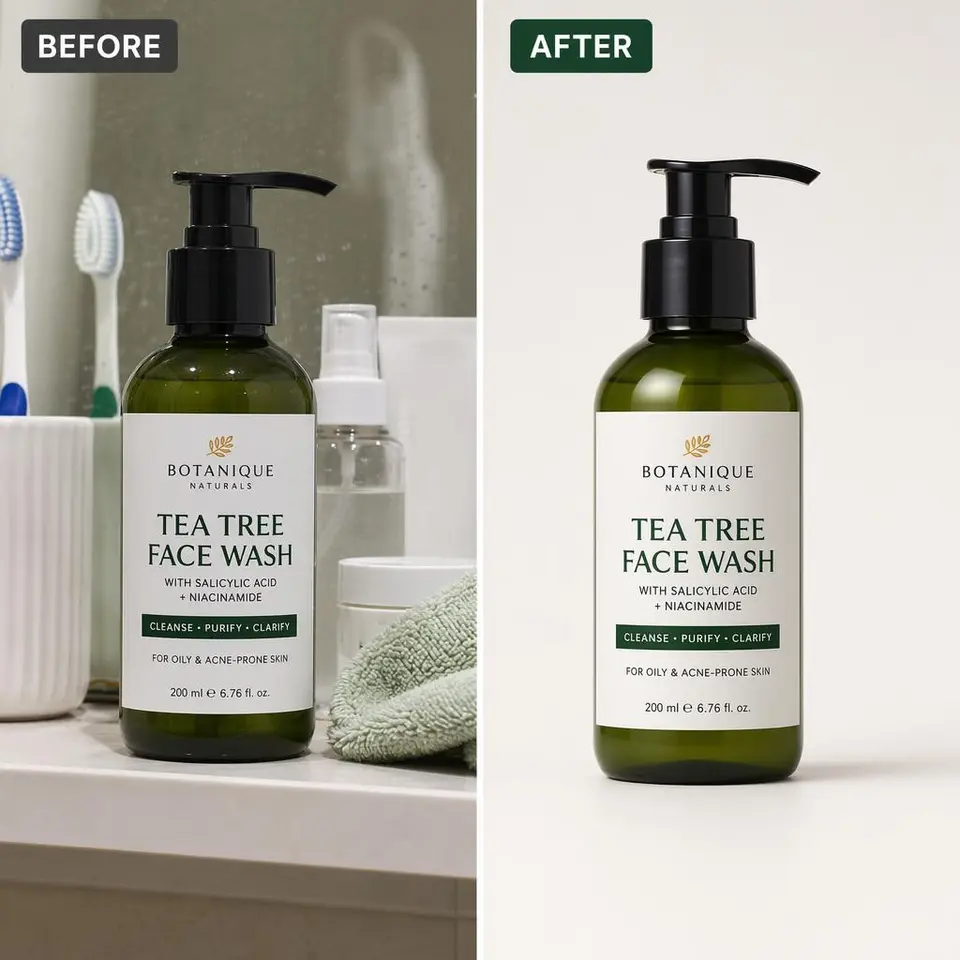
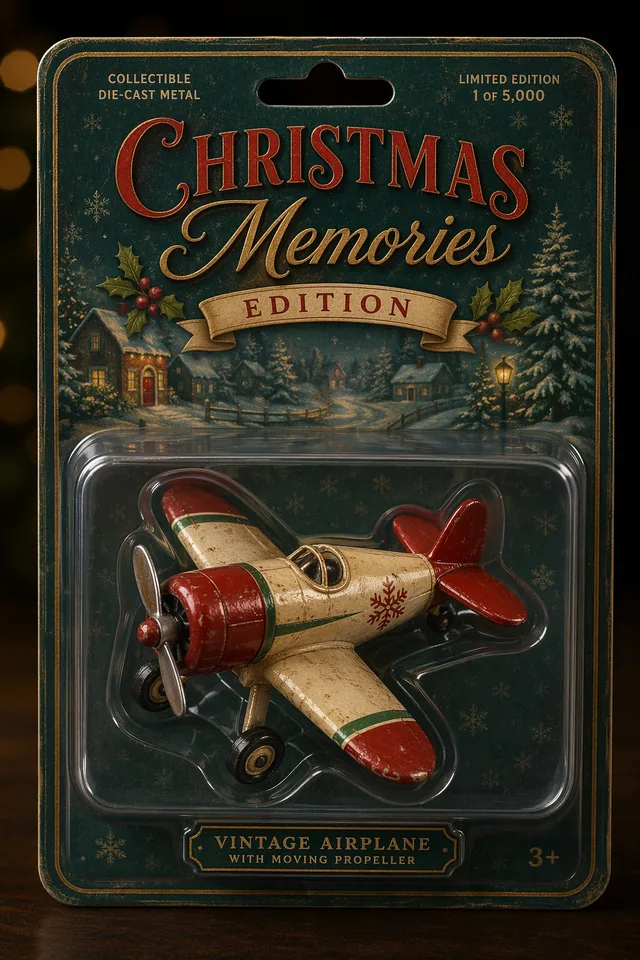
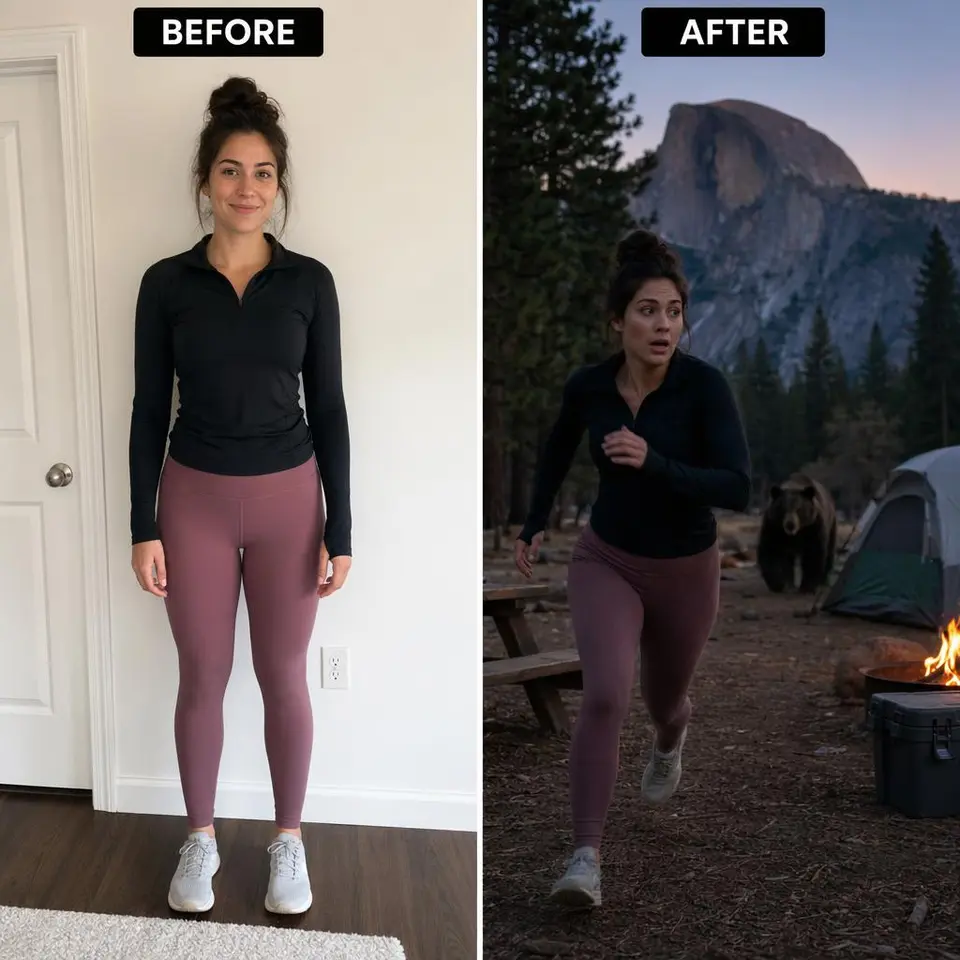
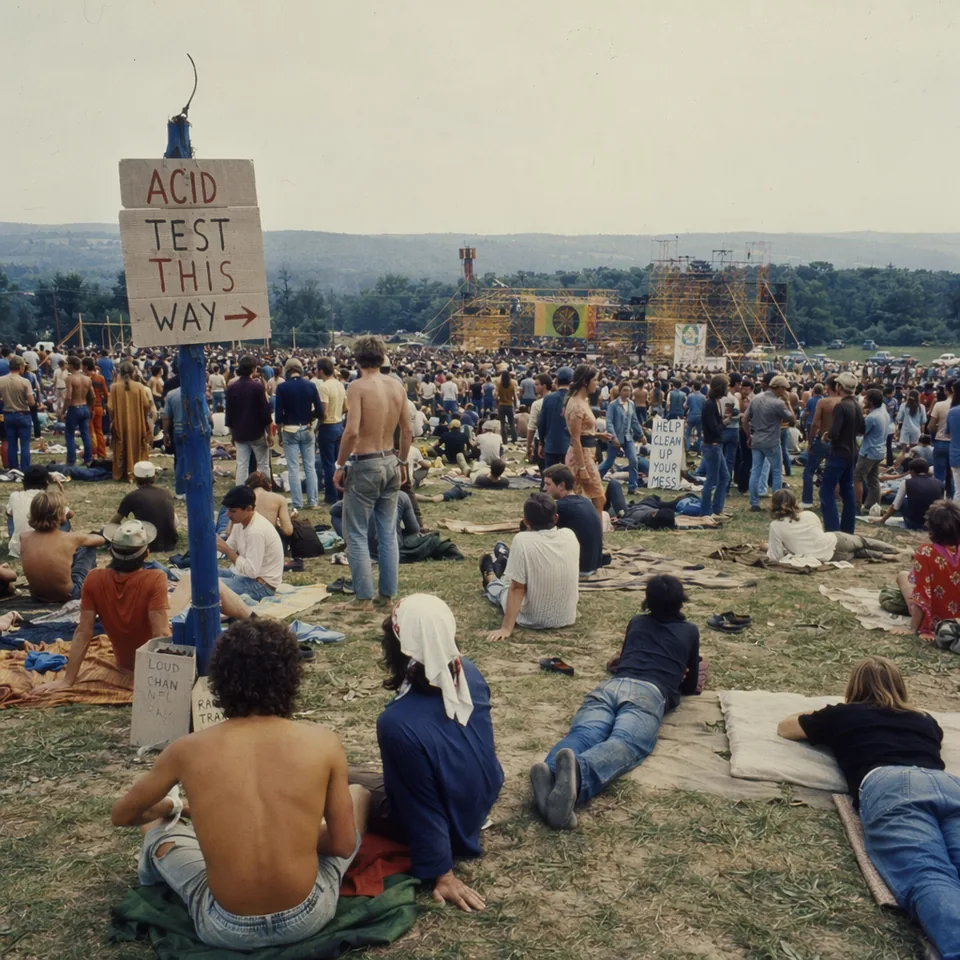
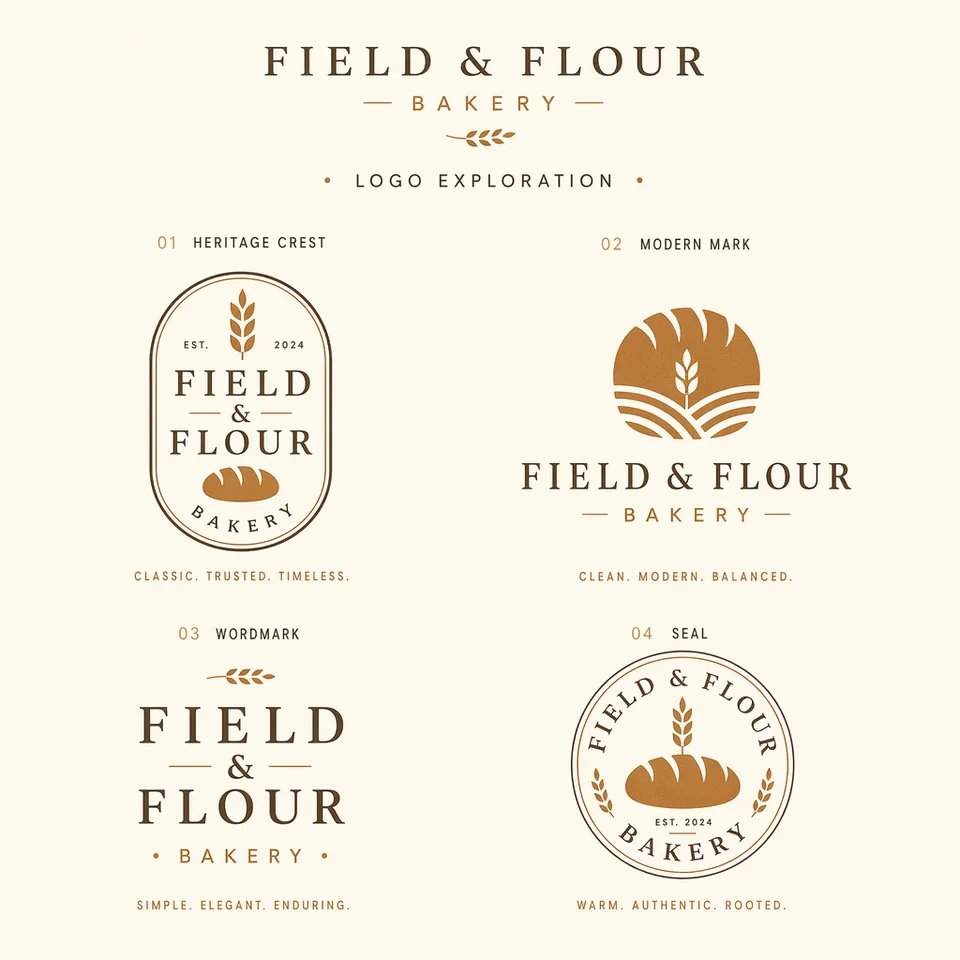
These GPT Image 2 examples target the search demand now rising around GPT Image, ChatGPT Image, OpenAI image, ChatGPT Images 2.0, and no sign-up image generation. Every image below was generated with GPT Image 2 through GizAI's API, optimized as WebP, and paired with a reusable prompt that shows output type, subject, composition, exact text, references, and constraints.

GPT Image 2 prompting guide

GPT Image 2 rewards structure. Treat every prompt as a production brief with a clear artifact, visual facts, exact copy, and a preserve/change contract. This playbook merges the practical patterns behind OpenAI image prompting, fal's GPT Image 2 examples, and the generated examples above into one reusable workflow.

Default GPT Image 2 template:

Scene:
[where this happens, time of day, environment, background]

Subject:
[who or what is the main focus]

Important details:
[materials, clothing, texture, lighting, camera angle, lens feel, composition, mood]

Use case:
[product ad / UI screen / infographic / poster / editorial photo / diagram / concept frame]

Constraints:
[no watermark / no logos / no extra text / preserve face / preserve layout / exact copy only]
API decision Use this default When to change it
Model Use GPT Image 2 for new production image generation and editing workflows. Use earlier models only for an already-validated legacy workflow, or a mini model when bulk draft volume matters more than first-pass quality.
Quality Start with Medium for normal assets. Use Low for ideation and High for final text-heavy, identity-sensitive, or diagram-heavy work. Raise quality after composition is right. High quality cannot rescue an unclear prompt, but it can protect small text, faces, product labels, and dense layouts.
Size Use 1024 square, 1024x1536 portrait, or 1536x1024 landscape while iterating. For API workflows, keep custom sizes on 16px boundaries, avoid extreme ratios over 3:1, stay below the max pixel budget, and treat near-4K as a final-pass target.
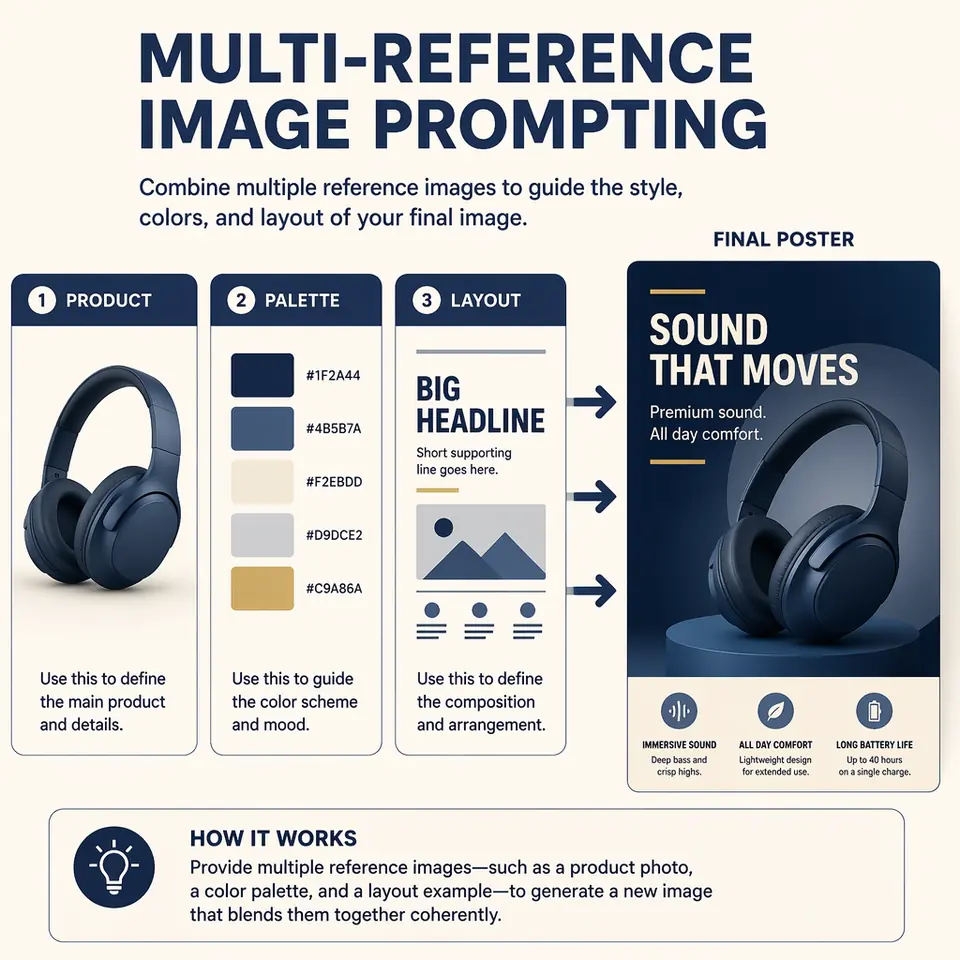
References Give each uploaded image a role: base scene, product, garment, style, pose, palette, layout, or texture. For multi-image edits, describe what is borrowed from each reference and what must remain locked in the base image.
Text Use quoted copy, typography instructions, placement, contrast, and a "no extra words" constraint. Use High when text is small, multi-line, table-like, menu-like, chart-like, or part of packaging/UI where spelling matters.
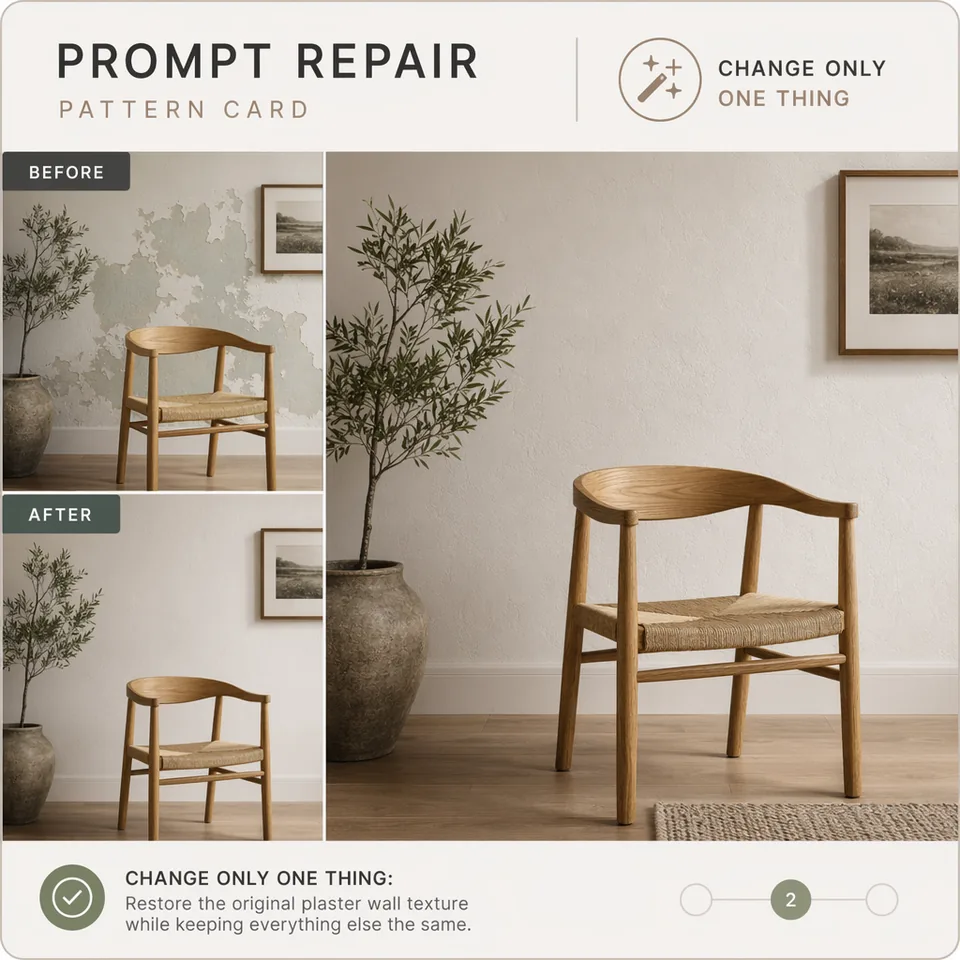
Edits Write edits as a contract: Change only X. Preserve A, B, C. Match physical lighting and shadows. Never ask for broad "improvement" and preservation in the same sentence. Separate the transformation from the invariants.
Workflow Prompt contract Production tactic
Generate from scratch Scene, subject, details, use case, constraints. Best for photoreal images, ads, logos, UI mockups, infographics, comics, slides, game screens, and fictional archive material.
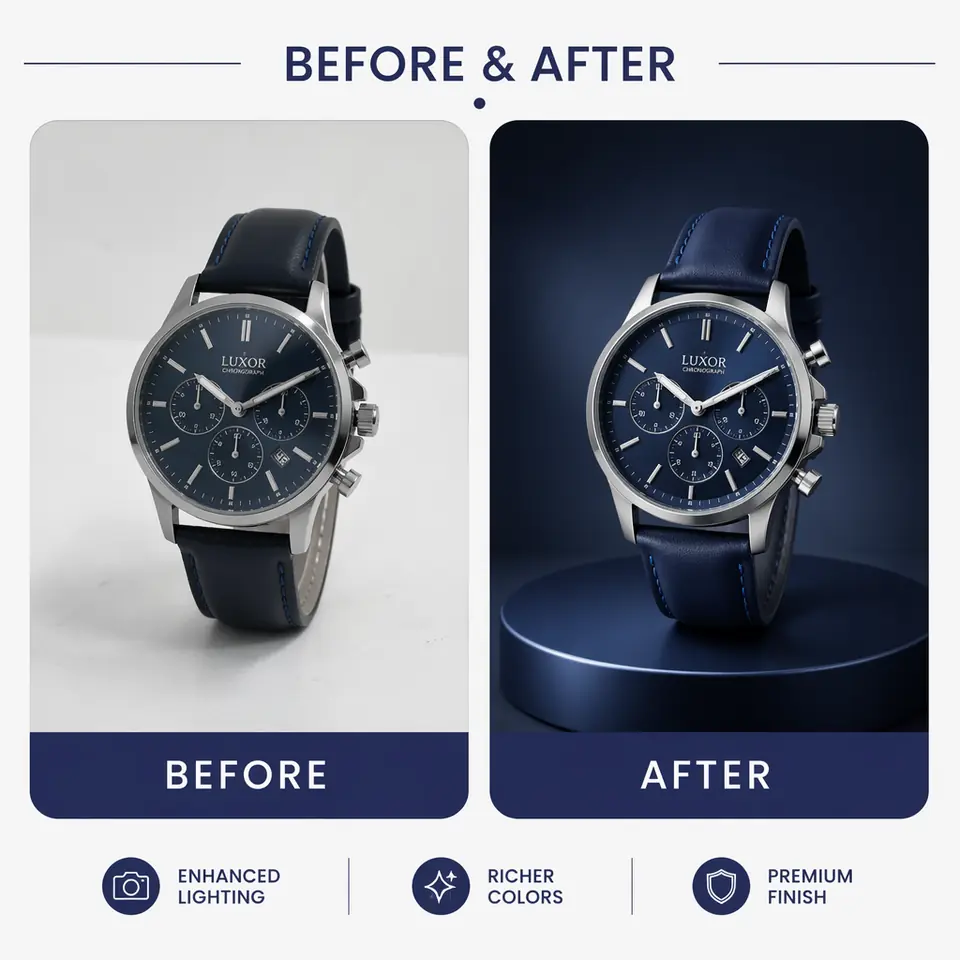
Edit one image Change: exactly what changes. Preserve: identity, geometry, labels, layout, lighting, camera angle, background, and surrounding objects. Use for cleanup, object removal, relighting, weather swaps, product extraction, translation in images, and background replacement.
Combine multiple images Image 1 = base scene, Image 2 = product, Image 3 = style, Image 4 = layout. Then state how they interact. Use for virtual try-on, product-on-background compositing, style transfer, character consistency, and reference-driven campaigns.
High-fidelity text Quote literal text, mark it EXACT TEXT, specify typography, placement, contrast, hierarchy, and "no extra words". Use medium or high quality for dense labels, menus, charts, UI copy, packaging, posters, and diagrams.
Latency vs fidelity Low for drafts, medium for normal production, high for small text, identity-sensitive edits, diagrams, dense UI, and final assets. Start cheap and fast, then raise quality only after the composition is worth preserving.
Flexible sizing Use multiples of 16, max edge below 3840, aspect ratio up to 3:1, and pixel count between 655,360 and 8,294,400. Stay near 1024 or 2K while iterating. Treat 4K as final-pass or experimental because higher resolutions can be more variable.
Revision discipline Make one change per turn: warmer light, remove one object, restore wall texture, enlarge the headline, or tighten crop. Avoid giant correction prompts. Restate critical invariants on every edit to prevent drift.
01 Visual facts beat praise Replace "stunning masterpiece" with material, light, framing, texture, surface wear, layout, and camera feel.
02 Write the artifact first "Create a roadside billboard..." or "Create a mobile onboarding screen..." sets mode, density, and finish before style words interfere.
03 Use labeled sections Scene, Subject, Important details, Use case, Constraints is easier to debug than one long paragraph.
04 Treat text as typography Use quoted exact text, define placement and type style, spell difficult words letter by letter, and forbid duplicate or extra text.
05 Split change and preserve For edits, say "change only X" and inventory the invariants: face, pose, product label, layout, shadows, camera angle, and background.
06 Label every reference Use role labels like product, palette, lighting, garment, pose, style, or base scene so multi-image prompts stay grounded.
07 Constrain real brands and IP For publishable examples, request fictional brands, original characters, no watermarks, no real franchise logos, and no trademark drift.
08 Generate variants early Create several directions first, choose the strongest composition, then use precise edit prompts on the winner.
What is GPT Image 2?

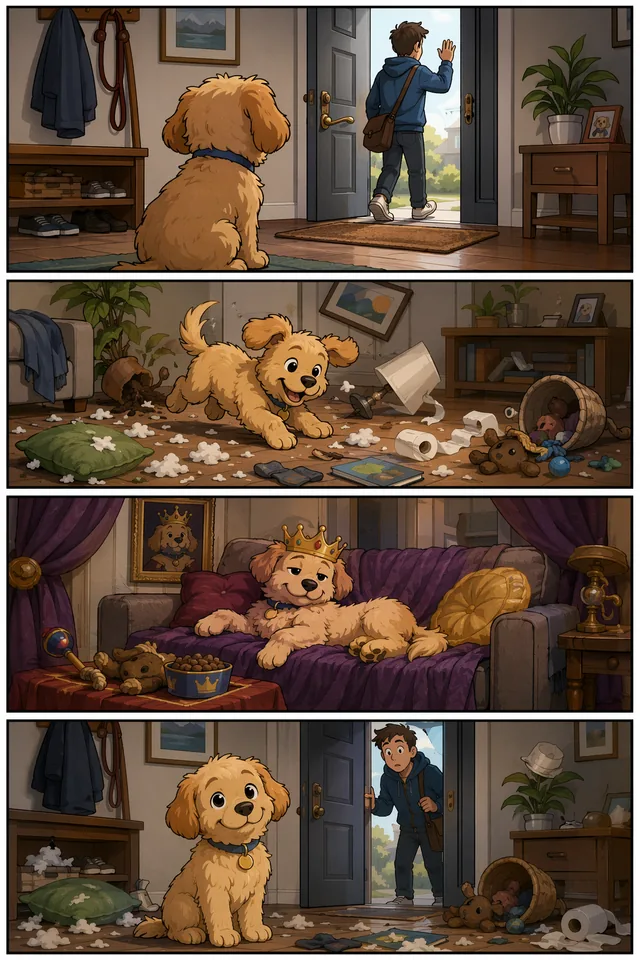
GPT Image 2 is OpenAI's newer image generation and editing model for fast, high-quality visual creation. It accepts text prompts and image inputs, then returns generated images for creative, product, design, marketing, editorial, education, and UI workflows. The practical shift is not just prettier images: GPT Image 2 makes more production steps disappear by improving layout following, readable typography, reference preservation, realistic product surfaces, world-specific scenes, and multi-step editing control.

Text-to-image

Write the scene, subject, lighting, camera, material, mood, and exact text you want. GPT Image 2 turns that brief into a finished image.

Image editing

Upload an existing image and describe the change: replace a background, restyle a product, adjust a poster, remove objects, or create a new variation.

Reference composition

Use several images as ingredients: product photo, brand palette, pose reference, texture, and layout can be combined in one prompt.

Text becomes usable

Headlines, labels, menu text, product packaging, classroom cards, and UI copy are now realistic first-class prompt targets instead of post-edit chores.

References become a control surface

Use one image for the subject, another for style, another for palette, and another for composition. The prompt explains each input's role.

Marketing pipelines get shorter

Ad creative, blog headers, newsletter graphics, product listings, thumbnails, and launch images can move from brief to draft without Figma cleanup first.

GPT Image 2 options in GizAI

GizAI exposes the production-safe GPT Image 2 controls that matter for day-to-day creative work. Use fast drafts while exploring, then switch to high quality for final assets.

Option Values When to use it
Size Auto, 1024 presets, 2K, 4K, or custom multiple-of-16 dimensions Square for general assets, landscape for banners and hero images, portrait for mobile ads and posters. Custom sizes stay inside GPT Image 2 limits.
Quality Low, medium, high Low for quick drafts, medium for balanced iteration, high for typography-heavy or final production visuals.
Output format JPEG, PNG, WebP JPEG is practical for web speed and sharing. PNG is better for crisp graphics and editing pipelines. WebP is useful for lightweight web assets.
Background Auto or opaque in this quick launcher Use opaque for product mockups, posters, and screenshots. Use the full editor/API path for any additional background options exposed by the provider.
Image count 1 to 10 Generate multiple directions from one prompt so you can pick the best composition instead of over-editing one image.
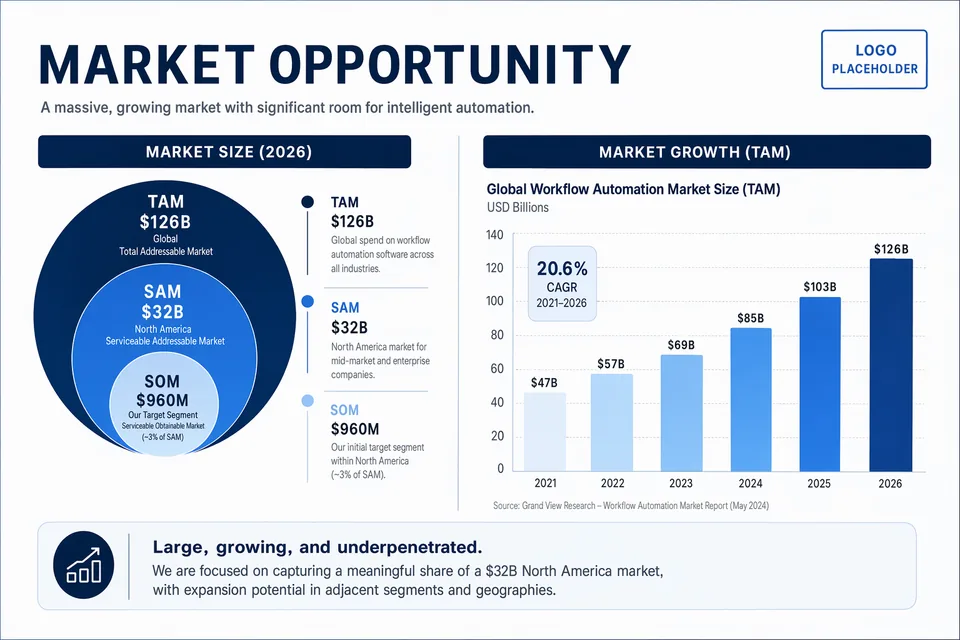
Reference images Multiple images Use product, pose, style, texture, color, character, or layout references when the output must preserve specific details.

Comparison guide

GPT Image 2 is strongest when the image must follow a concrete brief. Midjourney can still be the right tool for highly stylized art direction. Open models are valuable when you need local control or fine-tuning. GPT Image 2 is the practical default when the output must contain specific words, UI details, branded products, reference inputs, or production-ready marketing layout.

Need Why GPT Image 2 fits Prompt tactic
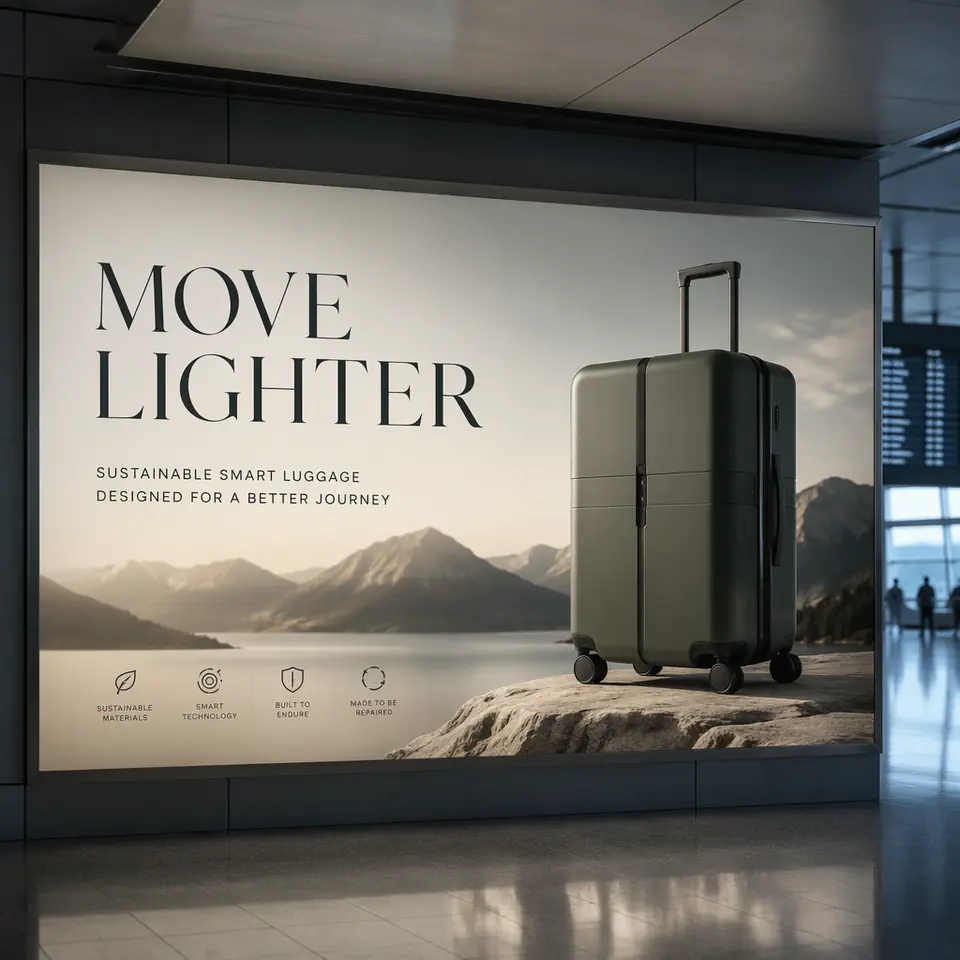
Readable posters Better instruction following makes quoted headlines, labels, and subcopy more viable. Put exact text in quotes and specify font style, size hierarchy, and placement.
Product edits Reference images let the model preserve product shape while changing setting, lighting, or campaign style. Say which image is the product and explicitly list what must remain unchanged.
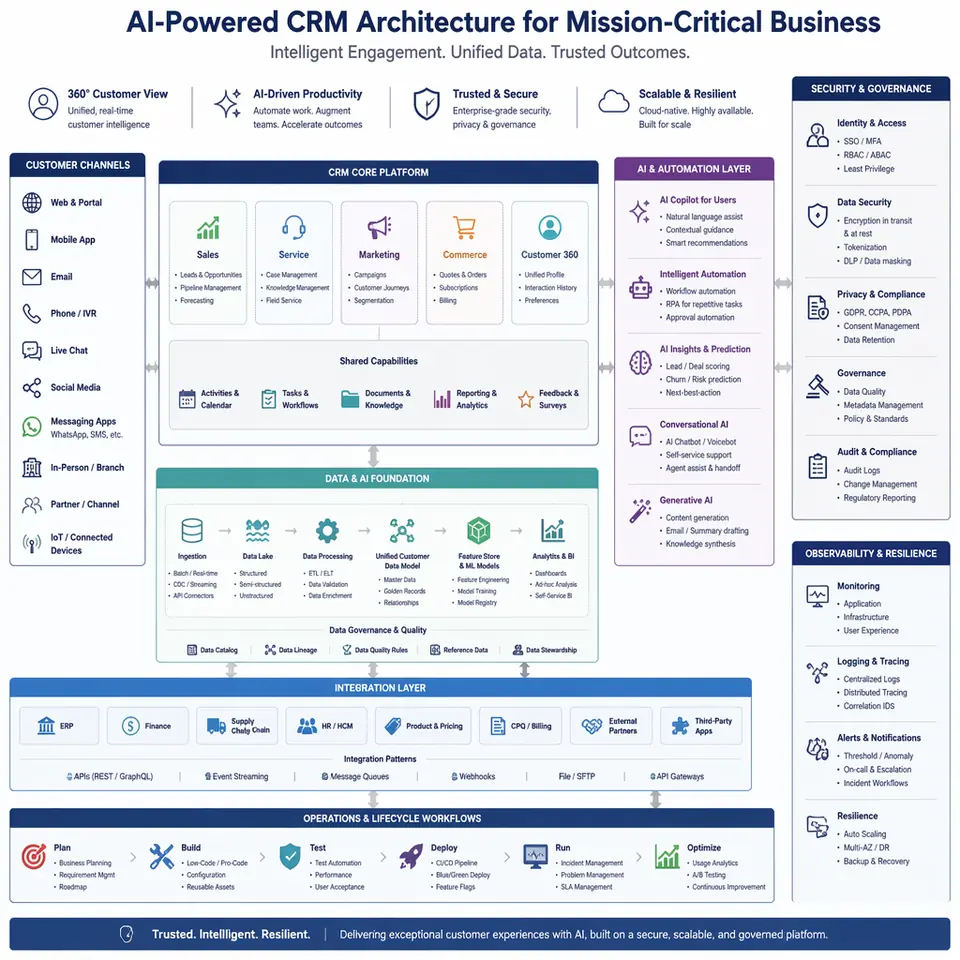
UI and app mockups GPT Image 2 is useful for realistic dashboard, mobile screen, game UI, and documentation screenshot concepts. Describe the screen type, nav labels, widget layout, data density, and visual system.
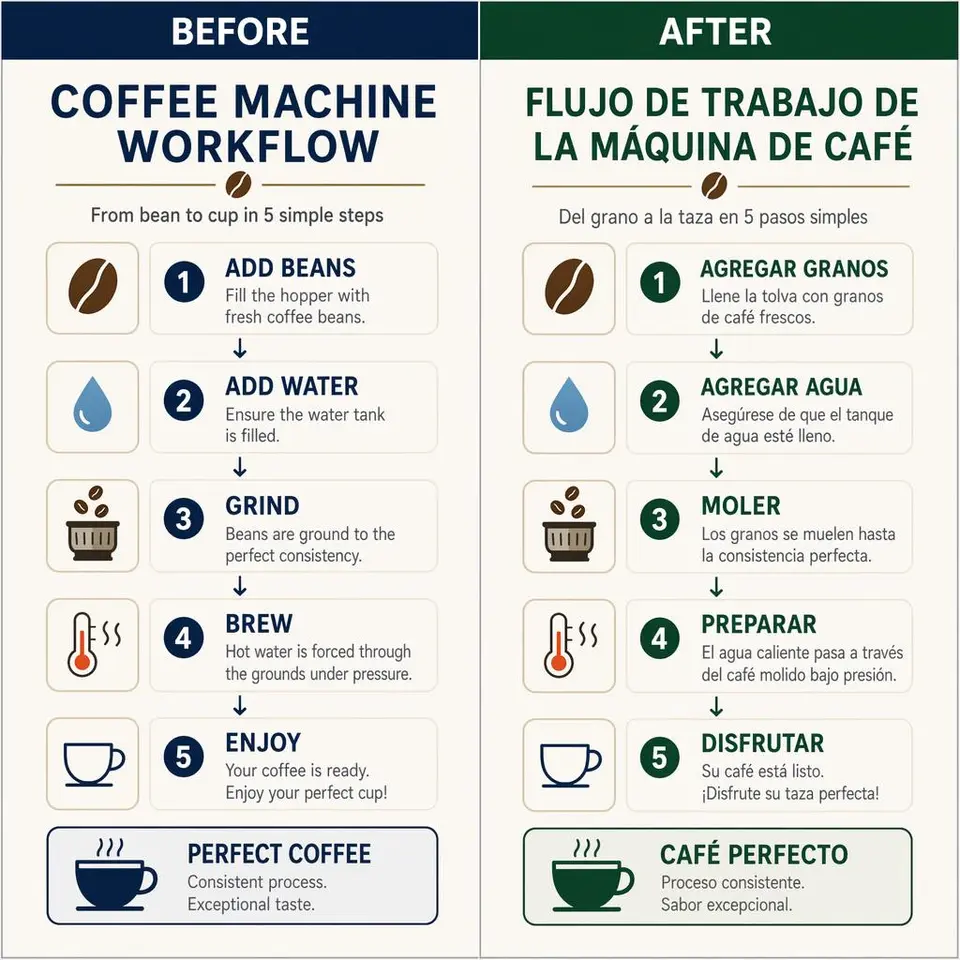
Localized creative Text-heavy workflows benefit when the model is asked for short, precise phrases rather than vague “foreign text”. Use exact phrases, avoid long paragraphs, and create one visual hierarchy per image.

GPT Image 2 Free vs no sign-up tools

Many pages rank for “GPT Image 2 Free”, “ChatGPT Images 2.0 Free”, and “no sign-up AI image generator” by describing the model but sending you through a delayed funnel. This page is built around the opposite path: prompt first, then open the GPT Image 2 editor with your prompt, references, and settings already applied.

Use no sign-up for speed

Best for trying a prompt, testing text rendering, creating a draft, or validating whether GPT Image 2 fits the job.

Use the editor for precision

Best for multi-reference edits, image count control, saved projects, repeatable settings, and production-ready workflows.

Use references for control

Upload references when a product, character, texture, brand style, or composition must be carried into the generated result.

FAQ

Is GPT Image 2 free on GizAI?

GizAI provides free GPT Image 2 access for quick creation, with usage limits depending on plan and availability. The page is designed so you can start with no sign-up friction.

Can I use GPT Image 2 with no sign-up?

Yes. You can write the prompt and choose settings before opening the GizAI GPT Image 2 editor. Reference uploads are passed through with your prompt and settings.

Does GPT Image 2 support multiple reference images?

Yes. GPT Image 2 supports workflows where one or more images guide a new image or edit. For best results, describe each upload by role: product, palette, lighting, pose, texture, character, or layout.

How do I get better text inside GPT Image 2 images?

Use short copy, put exact words in quotes, specify font style and placement, and add “no extra text”. For difficult names, spell the word letter by letter inside the prompt.

What is the best advanced prompt structure?

Use this order: intended output, scene, subject, important visual details, reference-image roles, exact text, then constraints. For edits, separate “change only” from “preserve”.

Why do people search “ChatGPT Images 2.0 Free”?

Users often describe the newer ChatGPT image experience as ChatGPT Images 2.0. GPT Image 2 is the model name exposed for generation and editing workflows.

What does “Duct Tape Free” mean here?

“Duct Tape” is a search term around a high-performing AI image model/codename discussed for strong realism, readable text, product visuals, and layout-following. GizAI supports the same practical workflows through GPT Image 2: prompts, reference images, posters, product ads, and structured visual edits.

Which size should I choose?

Use square for general images, landscape for hero graphics and website banners, and portrait for mobile ads, posters, pins, and vertical social posts.

Start with the image, not the signup form.

Write a prompt, choose your GPT Image 2 settings, then open GizAI with references, quality, format, and image count already applied.

Try GPT Image 2 now
Sign In / Up